
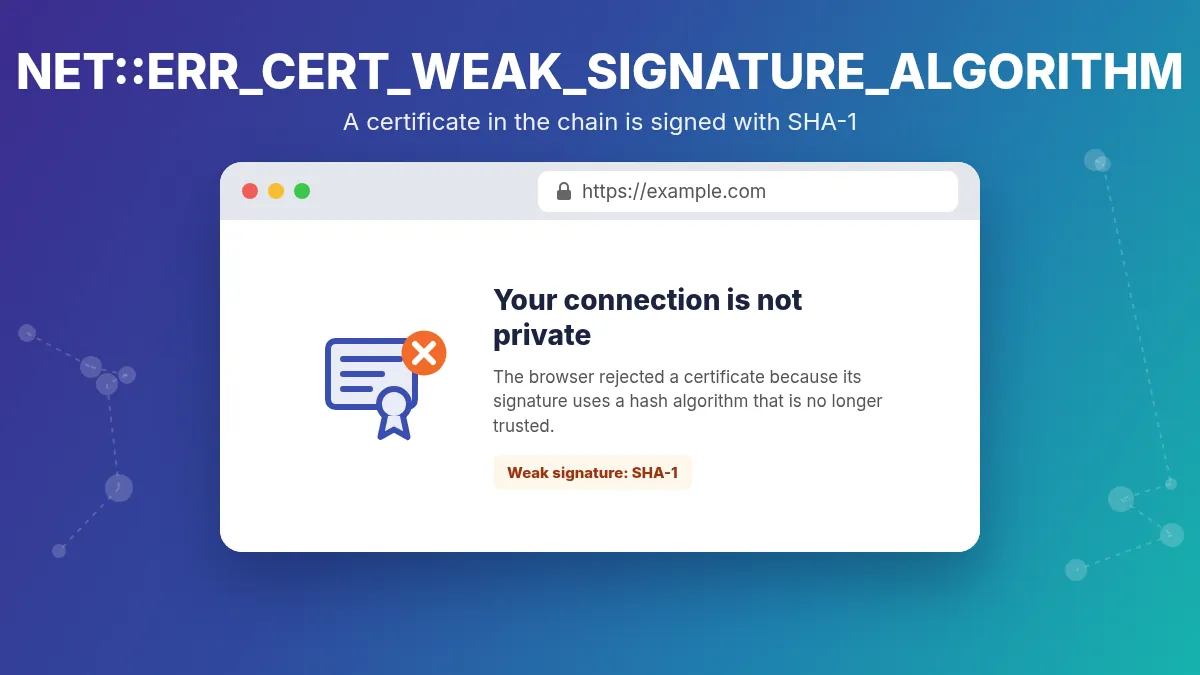
Last tested: November 20, 2026 · By Alex
NET::ERR_CERT_WEAK_SIGNATURE_ALGORITHM means Chrome or Edge rejected the site’s certificate because one certificate in the chain was signed with a hash algorithm that browsers no longer accept, in practice SHA-1 and, on very old equipment, MD5. The signature is written into the certificate when it is issued, so no server setting, browser flag or client update can make that certificate acceptable again. The fix is to find the weak certificate and replace it with one signed with SHA-256 or stronger.
Public certificate authorities have not been allowed to issue SHA-1 certificates since January 1, 2016, so in 2026 this warning almost never comes from a normal public website certificate. It comes from an internal company CA, a router, NAS, printer or server management page with a factory certificate, an old self-signed certificate, a forgotten intermediate in a chain file, or antivirus and proxy software that re-signs HTTPS traffic with an outdated algorithm. This guide shows how to tell which one you have, how to read the signature algorithm of every certificate in the chain, and how to replace the weak one.
Quick Fix
- Visitors: open two or three other HTTPS sites. If they all fail, your antivirus HTTPS scanning, VPN or company proxy is re-signing traffic; update it or pause its HTTPS inspection and retest.
- Visitors: if only one site fails on every device and network, the site owner has to replace a certificate. Do not bypass the warning on login or payment pages.
- Owners: run
openssl s_client -showcertsagainst the host (commands below) and read theSignature Algorithmof each certificate. Anysha1WithRSAEncryption,ecdsa-with-SHA1ormd5WithRSAEncryptionon the leaf or an intermediate is the cause. - Owners: reissue that certificate with SHA-256 (or replace the old intermediate with the one your CA serves today), point the server at the new full chain and reload it.
- Internal CA or device: switch the CA or appliance to SHA-256, then issue a new certificate. Renewing with the old settings produces the same weak signature.
What NET::ERR_CERT_WEAK_SIGNATURE_ALGORITHM Means
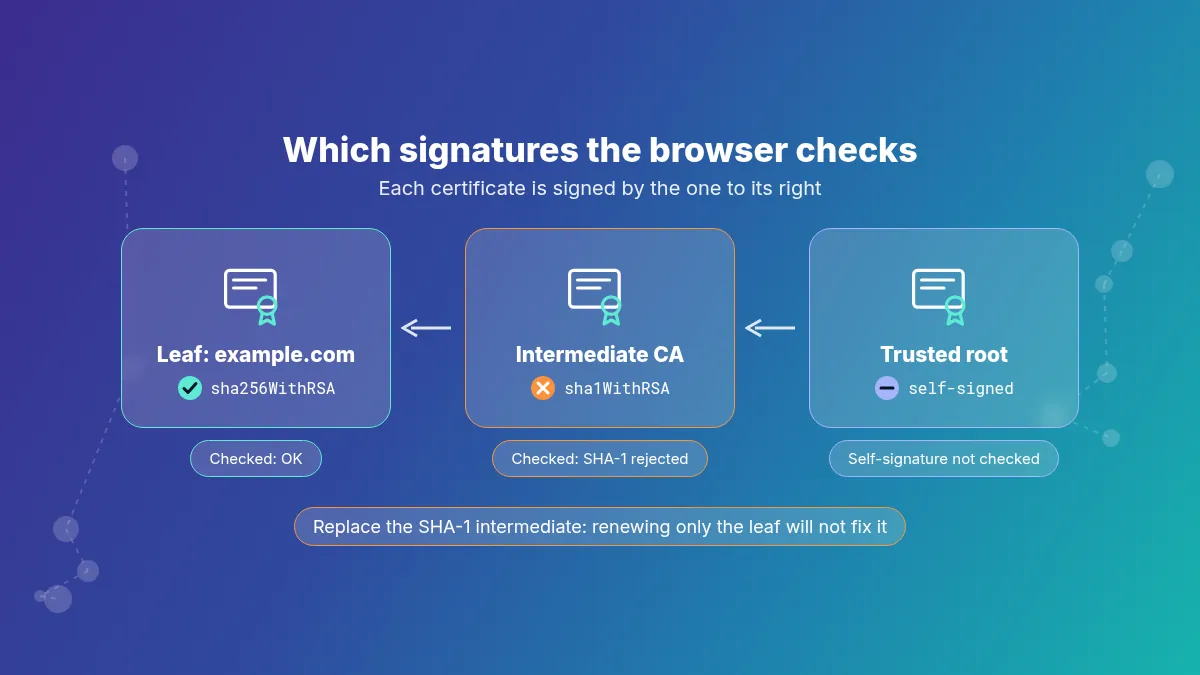
Every certificate except the trust anchor is signed by the certificate above it. The signature is made over a hash of the certificate, and the hash algorithm is part of the signature algorithm name: sha256WithRSAEncryption, ecdsa-with-SHA384 or, for weak certificates, sha1WithRSAEncryption. SHA-1 is broken for this purpose because researchers have produced practical collisions, which in a certificate means the ability to forge one. Chrome 56 stopped trusting SHA-1 certificates that chain to public CAs in January 2017, and Chrome 57 extended that to certificates chaining to locally installed roots used by companies.
Which signatures the browser checks
- Leaf certificate (the one for the hostname): checked. A SHA-1 leaf triggers the error.
- Intermediate certificates: checked. A modern leaf issued by a SHA-1 intermediate still fails, which is why renewing only the leaf sometimes changes nothing.
- Root certificate: its self-signature is not checked. A trusted root that happens to be self-signed with SHA-1 does not cause this warning; the browser trusts the root because it is in the trust store, not because of its signature.
Chrome shows the code on its full-page Your connection is not private warning. Other browsers use other names for the same problem: Firefox shows SEC_ERROR_CERT_SIGNATURE_ALGORITHM_DISABLED, and Firefox 52 and later reject SHA-1 by default. When Firefox does not trust the issuer at all, it shows SEC_ERROR_UNKNOWN_ISSUER instead.
How it differs from similar certificate errors
- NET::ERR_CERT_AUTHORITY_INVALID: the browser does not trust the issuer or the chain is incomplete. The algorithm may be fine.
- NET::ERR_CERT_DATE_INVALID: the certificate is expired or not yet valid, or the device clock is wrong.
- ERR_CERT_COMMON_NAME_INVALID: the certificate is valid but issued for a different hostname.
- ERR_SSL_KEY_USAGE_INCOMPATIBLE: the certificate’s Key Usage extension does not allow the key exchange the server picked.
- ERR_SSL_VERSION_OR_CIPHER_MISMATCH: the server offers only old protocol versions or ciphers. Chrome disabled TLS 1.0 and 1.1, which use SHA-1 throughout, in 2020.
- ERR_SSL_PROTOCOL_ERROR: since Chrome 117, a server that can only sign the TLS 1.2 handshake with SHA-1 fails here. That is a handshake signature made by the server software, not the certificate signature, and it is fixed by updating the server software rather than reissuing the certificate.
Where Weak Certificates Still Come From
Knowing who issued the weak certificate tells you who can replace it. Open the warning’s certificate details and look at the Issued By field of the failing certificate.
1. An internal company CA
Intranet sites, VPN portals, Exchange or SharePoint servers and internal dashboards often use certificates from a private CA such as Active Directory Certificate Services. If that CA was set up years ago with SHA-1 and never migrated, every certificate it issues today is still SHA-1, and every renewal reproduces the problem.
2. Routers, NAS boxes, printers and management interfaces
Admin pages on older routers, storage boxes, printers, UPS cards, KVMs and server management controllers often ship with a factory self-signed certificate. Many of them use SHA-1 or MD5 and cannot be fixed without a firmware update or a new uploaded certificate. These cases usually show this error and an untrusted-issuer warning at the same time.
3. Antivirus, VPN or proxy HTTPS inspection
Products that inspect HTTPS replace each site’s certificate with one they generate on the fly. If the product or its configuration is outdated, those generated certificates may be signed with SHA-1, and every HTTPS site fails on that device or network. Mozilla documented exactly this pattern when it began rejecting new SHA-1 certificates: users behind some security scanners and antivirus products lost access to HTTPS sites, while everyone else noticed nothing.
4. An old intermediate in the chain file
A server can present a fresh SHA-256 leaf together with an old intermediate copied from a previous installation, a hosting panel’s stale CA bundle field or a hand-built chain file. The browser builds the path through the old intermediate and rejects it.
5. Old self-signed and test certificates
Self-signed certificates created years ago by scripts, appliances or older OpenSSL versions without an explicit digest can be SHA-1. They often live on staging hosts, mail servers, alternate ports and legacy subdomains that nobody has opened in a browser for a long time.
First Split: One Site or Every HTTPS Site?
This one check decides whether the fix belongs to the website or to your device.
- Open other HTTPS sites in the same browser. If many sites fail, the problem is local: inspection software, a VPN or a corporate proxy.
- Open the failing site on another network, such as mobile data. If it works there, a proxy or security gateway on the first network is re-signing traffic.
- Read the issuer. Click Not secure in the address bar, then the certificate details. An issuer that names your antivirus, firewall vendor or employer means the certificate you see is not the one the website sent.
- Try another browser. If one browser fails and another works on the same device, compare their certificate views: one of them may be using a different proxy setting or trust store.
If the warning appears only on your device, update the antivirus or VPN first, because current versions sign with SHA-256. If it still happens, turn off its HTTPS or SSL scanning feature, retest, and contact the vendor or your IT team. On a managed network, the proxy administrator has to update the inspection certificate; you cannot fix it from the browser. When the site works elsewhere but only one browser fails, see why a website is not loading in one browser only.
Find the Weak Certificate in the Chain
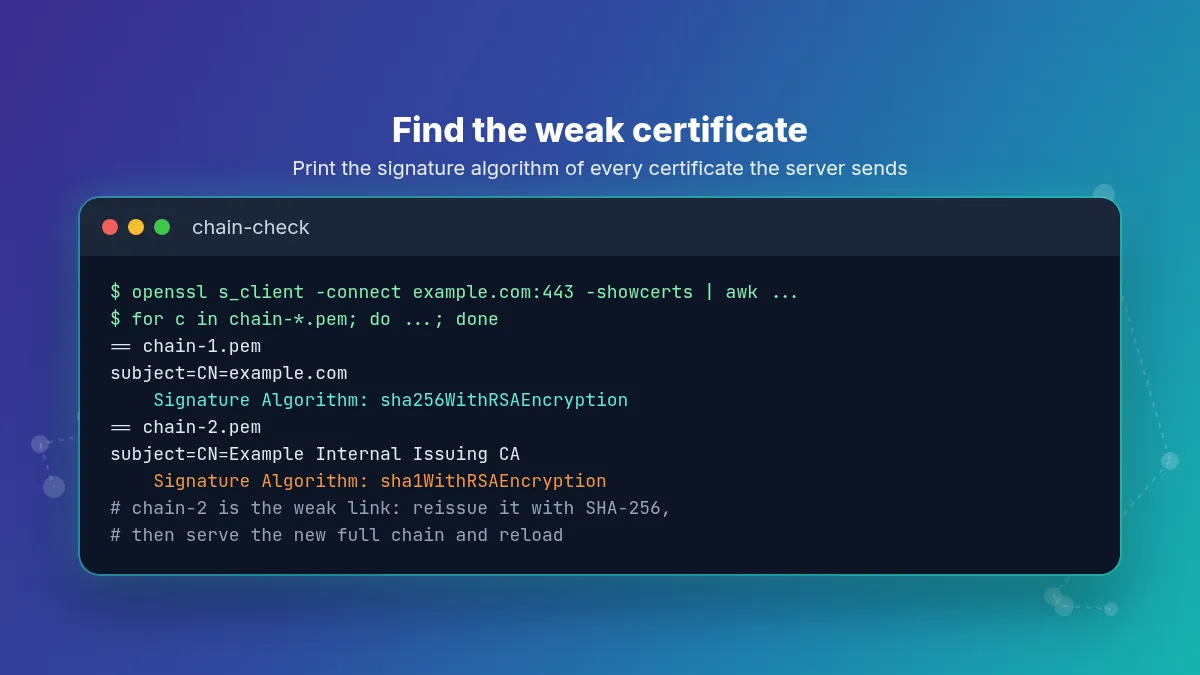
Once you know the website itself is serving the weak chain, find out exactly which certificate is weak. Check every certificate the server sends, not just the leaf.
In Chrome or Edge
Click Not secure, open the certificate viewer and switch to Details. Select each certificate in the hierarchy at the top and read the Certificate Signature Algorithm field. Note the subject of any certificate that shows SHA-1 or MD5.
With OpenSSL
This splits everything the server sends into separate files and prints the subject, issuer and signature algorithm of each one. Replace example.com with the hostname, and add :8443 or another port for admin panels:
echo | openssl s_client -connect example.com:443 -servername example.com -showcerts 2>/dev/null \
  | awk '/BEGIN CERT/{n++; f="chain-" n ".pem"} f{print > f} /END CERT/{f=""}'

for c in chain-*.pem; do
  echo "== $c"
  openssl x509 -in "$c" -noout -subject -issuer
  openssl x509 -in "$c" -noout -text | grep -m1 "Signature Algorithm"
done
A healthy chain shows values such as sha256WithRSAEncryption, sha384WithRSAEncryption or ecdsa-with-SHA384 on every file. chain-1.pem is the leaf; the others are intermediates and, on some servers, an unnecessary root. A SHA-1 line on a file whose subject equals its issuer is a self-signed root and can simply be removed from the chain file.
Check a certificate file on the server
openssl x509 -in /etc/ssl/certs/site.crt -noout -subject -issuer -dates
openssl x509 -in /etc/ssl/certs/site.crt -noout -text | grep -m1 "Signature Algorithm"

# Every certificate inside a bundle file
openssl crl2pkcs7 -nocrl -certfile /etc/ssl/certs/site-fullchain.pem \
  | openssl pkcs7 -print_certs -text -noout | grep -E "Subject:|Signature Algorithm" | uniq
Compare what is on disk with what the server sends. If the file is modern but s_client still shows a SHA-1 certificate, the web server is reading a different file, another virtual host answers for that name, or a load balancer or CDN in front presents its own chain.
On Windows servers
Get-ChildItem Cert:\LocalMachine\My |
  Select-Object Subject, NotAfter, @{n='SigAlg';e={$_.SignatureAlgorithm.FriendlyName}}

certutil -dump C:\certs\site.cer | findstr /i "Algorithm"
Values such as sha1RSA mark a weak certificate; sha256RSA is fine. For IIS, also check which certificate is selected in each site’s HTTPS binding.
How to Fix NET::ERR_CERT_WEAK_SIGNATURE_ALGORITHM Step by Step
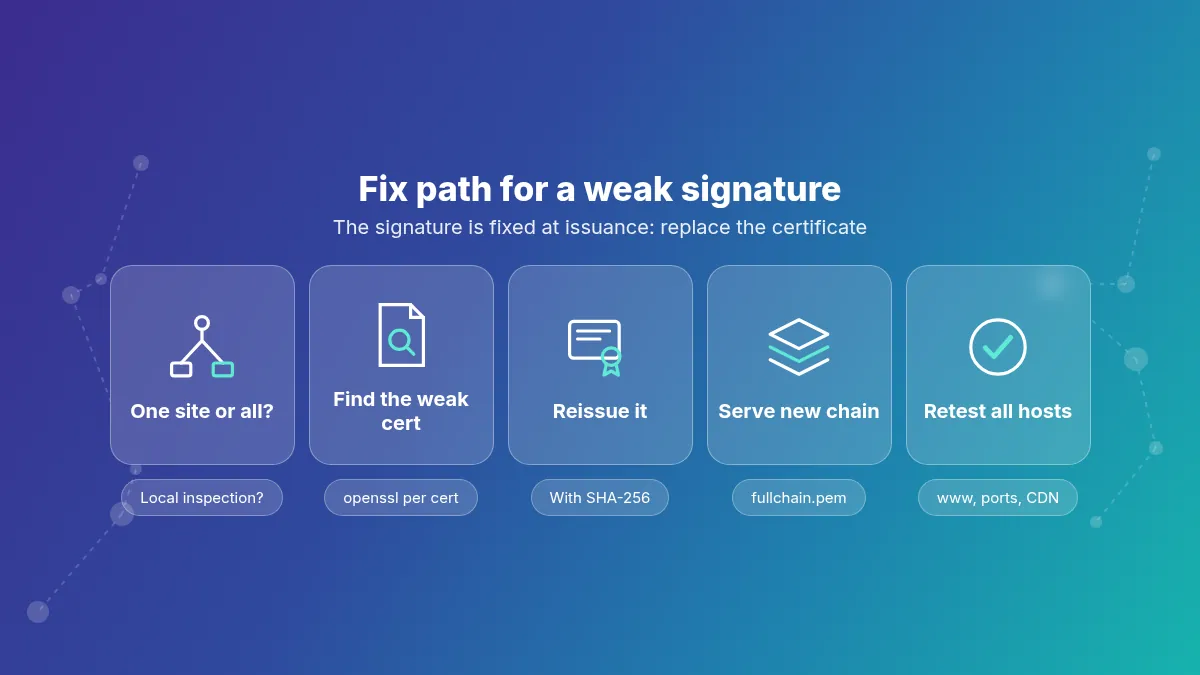
Work from the certificate you identified. The goal is always the same: every certificate the server sends, except an optional root, signed with SHA-256 or stronger.
Step 1: Replace a weak public leaf certificate
For a public website, request a new certificate from your CA or let your host’s free certificate feature issue one. Let’s Encrypt and every other public CA issue SHA-256 or SHA-384 signatures. If you generate the key and CSR yourself, pass the digest explicitly:
openssl req -new -newkey rsa:2048 -nodes -sha256 \
  -keyout example.com.key -out example.com.csr \
  -subj "/CN=example.com" \
  -addext "subjectAltName=DNS:example.com,DNS:www.example.com"
The CA decides the final signature algorithm, but a modern CSR avoids surprises with older tools. Install the new certificate together with its full chain and remove the old one from the hosting panel so it cannot be selected again.
Step 2: Serve the current intermediate, not an old one
Download the chain your CA provides today, or use the fullchain.pem file that Certbot and similar clients write. Point the server at it:
# Nginx
ssl_certificate     /etc/letsencrypt/live/example.com/fullchain.pem;
ssl_certificate_key /etc/letsencrypt/live/example.com/privkey.pem;

# Apache 2.4.8 and later: leaf followed by intermediates in one file
SSLCertificateFile    /etc/letsencrypt/live/example.com/fullchain.pem
SSLCertificateKeyFile /etc/letsencrypt/live/example.com/privkey.pem
Test the configuration (sudo nginx -t or sudo apachectl configtest), reload, and run the OpenSSL loop again. In cPanel, Plesk and similar panels, paste the current CA bundle into the chain field instead of keeping the old value. A missing intermediate gives a different error, covered in SSL certificate not trusted.
Step 3: Regenerate an old self-signed certificate
For staging hosts, internal tools and lab devices that use a self-signed certificate, create a new one with SHA-256 and a Subject Alternative Name:
openssl req -x509 -newkey rsa:2048 -sha256 -days 397 -nodes \
  -keyout nas.key -out nas.crt \
  -subj "/CN=nas.example.lan" \
  -addext "subjectAltName=DNS:nas.example.lan,IP:192.168.1.20"
A self-signed certificate is still untrusted until you install it, or better a private root, on the devices that use it, so expect an untrusted-issuer warning until you do. That warning is a trust decision you control; the weak-signature warning has no safe override.
Step 4: Move an internal CA to SHA-256
If the weak certificate comes from your own CA, reissuing from the same CA with the same settings repeats the problem. On Active Directory Certificate Services, check the current hash setting, switch it to SHA-256 and restart the service:
certutil -getreg ca\csp\CNGHashAlgorithm
certutil -setreg ca\csp\CNGHashAlgorithm SHA256
net stop certsvc && net start certsvc
This works only when the CA uses a key storage provider that supports SHA-256; older CAs on a legacy cryptographic service provider need a provider migration first. After the change, renew the issuing CA certificate if it is itself SHA-1, publish the new CA certificate, and reissue the server certificates. Back up the CA and test the change in a lab first; for other private CAs, follow the vendor’s documentation for changing the signing digest.
Step 5: Update the device or upload a new certificate
For routers, NAS boxes, printers and management controllers, install the latest firmware first, because many vendors switched their built-in certificates to SHA-256 in updates. Then use the device’s certificate page to regenerate its certificate or upload one issued by your internal CA. If the device can only produce SHA-1 or MD5 certificates and has no update, put it behind a reverse proxy with a modern certificate or replace it.
Step 6: Fix HTTPS inspection at the source
When antivirus, a VPN client or a corporate proxy is the issuer, update the product so it generates SHA-256 certificates, regenerate its inspection root if it offers that option, and redeploy that root to managed devices. Adding a site to the inspection exclusion list is a reasonable short-term measure; leaving HTTPS scanning off everywhere is not the goal.
Step 7: Retest every hostname and port
Run the OpenSSL check for the apex, www, every redirect target, mail and admin hostnames, and any non-standard ports. If a CDN sits in front of the site, test both the CDN hostname and the origin; with a strict origin check, a weak origin certificate makes Cloudflare return Error 526 instead of passing a browser warning through. Finally, run an external test such as SSL Labs to confirm the chain from outside your network.
Why There Is No Safe Browser Override
Chrome once had a temporary enterprise policy, EnableSha1ForLocalAnchors, that allowed SHA-1 certificates chaining to private roots. It was removed in Chrome 72 in early 2019. A later temporary policy for SHA-1 in TLS handshakes, InsecureHashesInTLSHandshakesEnabled, was removed in Chrome 123. Firefox once offered an about:config preference for SHA-1 enforcement, but changing hidden security settings on a daily-use browser is not a fix either.
Clicking through the warning, typing bypass phrases or adding certificate exceptions only hides the problem on one device and teaches users to ignore certificate warnings. On sites that send HSTS, Chrome does not offer a way past the warning at all; see HSTS error for why. For a device you own on a private network, replacing the certificate takes a few minutes and removes the warning for everyone.
Prevention Tips
- Keep an inventory of internal certificates, including appliances and non-standard ports, and check their signature algorithm during renewals.
- Pass
-sha256explicitly in every OpenSSL script that creates CSRs or self-signed certificates. - Replace the whole chain on renewal and delete old CA bundle values from hosting panels and load balancers.
- Keep antivirus, VPN clients and inspection proxies on supported versions; they are the most common source of weak certificates on otherwise healthy sites.
- Retest HTTPS after every migration, firmware update or CDN change, including redirects and subdomains.
- Plan the move away from SHA-1 for everything else too, such as client certificates and code signing, before a browser or OS removes it.
For a map of other browser warnings and status codes, start from how to fix website errors.
When to Contact Support
Contact your host or certificate provider if the OpenSSL check shows a SHA-1 certificate on a public website you cannot change from the panel, or if the host terminates HTTPS on a load balancer you do not control. Contact your IT or security team if many HTTPS sites fail on a managed device, the issuer names a company proxy, or the weak certificate comes from an internal CA. Contact the device vendor when an appliance cannot generate or accept a SHA-256 certificate. Send the hostname, port, the subject and issuer of the weak certificate and the output of the OpenSSL loop above.
Frequently Asked Questions
One certificate in the chain the server sent is signed with a hash algorithm browsers no longer trust, almost always SHA-1. The signature cannot be changed, so the certificate has to be reissued with SHA-256 or stronger.
No. Chrome removed the last policy that allowed SHA-1 certificates from private roots in Chrome 72. The certificate, the intermediate or the inspection software that created it has to be replaced or updated.
No. Browsers do not check the self-signature on a trusted root. The error comes from a SHA-1 signature on the leaf or on an intermediate certificate, which you can see with openssl s_client and the certificate viewer.
Something on your device or network is re-signing HTTPS traffic with SHA-1, usually antivirus HTTPS scanning, a VPN client or a company proxy. Update that product or pause its HTTPS inspection, then retest.
Either the server still sends an old SHA-1 intermediate, a different virtual host or load balancer answers for the name, or an internal CA still signs with SHA-1. Check each certificate the server sends with openssl.
Run openssl req with the options x509, newkey rsa:2048, sha256 and addext for the subjectAltName, then install the new certificate and key on the device. Trust it on the devices that use it to avoid an untrusted issuer warning.

Hi, I’m Alex — the person behind ErrorRescue.
I’ve been working with websites, servers, and hosting for over 8 years. Most of my experience comes from troubleshooting real problems on WordPress sites, VPS and shared hosting environments, and Cloudflare setups. I’ve dealt with everything from SSL certificate failures and DNS misconfigurations to 504 timeouts, memory exhaustion errors, and Cloudflare 5xx issues.
I started ErrorRescue because I got tired of seeing generic, outdated, or incomplete error guides. My goal is to write clear, practical fixes based on what actually works in production — not just theory. Every guide here is tested against common server setups (Apache, NGINX, Cloudflare, and popular WordPress stacks).
When I’m not fixing sites, I’m usually reviewing new hosting configurations or updating existing guides so they stay accurate.