

ERR_CONNECTION_TIMED_OUT means your browser waited for a server response but got nothing. The request reached the network, but the server did not answer in time.
This error is usually caused by network issues, firewall blocks, DNS problems, VPN interference, or server downtime. Unlike a DNS failure, the domain may resolve correctly. The problem starts after the connection attempt begins.
Quick Fix
- Check if the website is down for everyone (try mobile data or another device).
- Restart your router and device.
- Disable VPN or proxy completely.
- Clear browser cache.
- Flush DNS cache.
- Switch DNS to 8.8.8.8 or 1.1.1.1.
Most ERR_CONNECTION_TIMED_OUT errors are fixed by a network reset or a DNS change.
What ERR_CONNECTION_TIMED_OUT Means

This error appears when your browser sends a request to a server but does not receive a response within the allowed time.
Unlike DNS errors, the domain may resolve correctly. The problem happens after the connection attempt starts.
In simple terms:
- The browser found the server
- But the server did not respond
- Or the connection was blocked or dropped
In Firefox the same problem often appears as “The connection has timed out.”
Why ERR_CONNECTION_TIMED_OUT Happens
Server Is Down
The website server may be offline, overloaded, or not listening on ports 80 and 443.
Firewall Blocking Connection
A local firewall, antivirus, hosting firewall, or WAF may silently drop your IP instead of refusing the connection.
Network Issues
Your internet connection may be unstable, congested, or restricted by the ISP.
DNS Misconfiguration
DNS may resolve slowly or point to an IP that does not answer.
Incorrect IP Address
The domain may point to the wrong server after a migration or DNS edit.
Proxy or VPN Problems
VPN services can block, throttle, or fail to forward the connection, which looks like a timeout.
Step-by-Step Fixes
1. Check If Website Is Down
Open the site on another device or switch to mobile data. If it fails everywhere, the issue is server-side. If it works elsewhere, the problem is local.
2. Restart Router and Device
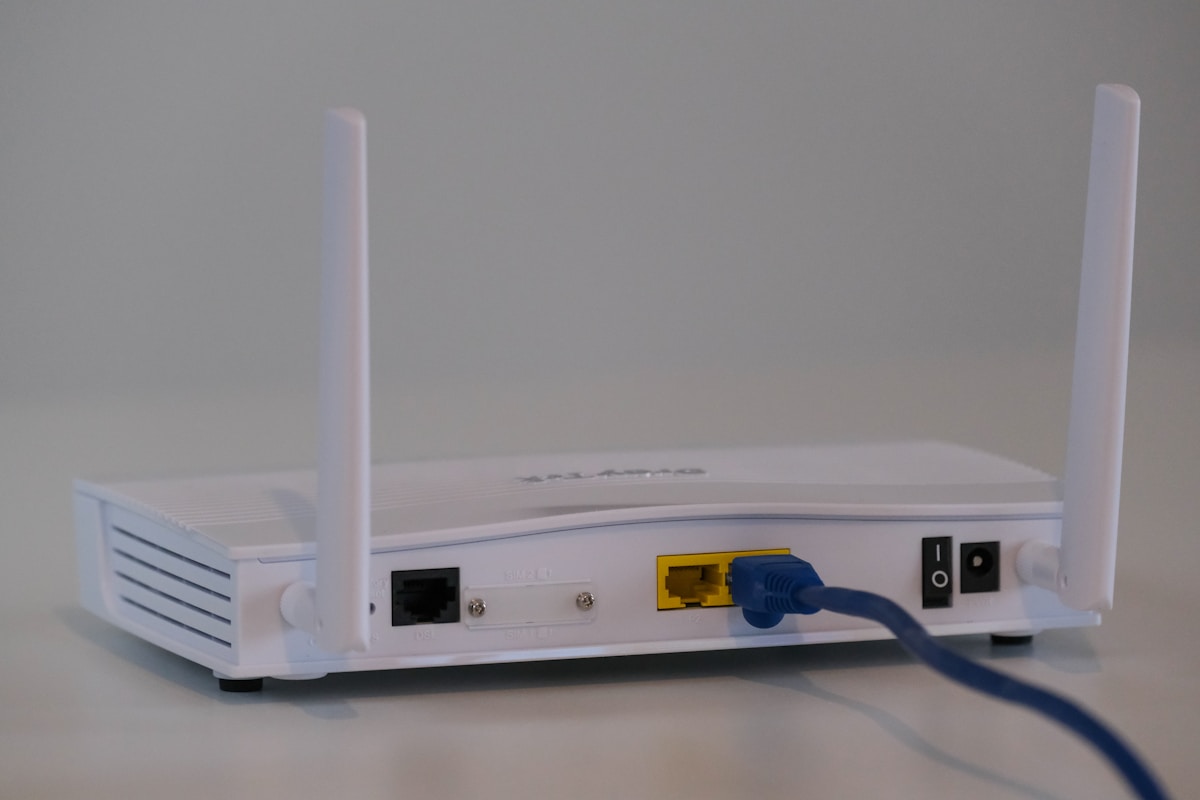
Turn off your router for 30–60 seconds, plug it back in, wait until it fully boots, then restart your computer or phone and test again.
3. Disable VPN or Proxy
Fully quit the VPN app, not just disconnect. Also turn off any system or browser proxy, then reload the page.
4. Flush DNS Cache
Windows:
ipconfig /flushdnsmacOS:
sudo dscacheutil -flushcache; sudo killall -HUP mDNSResponder5. Change DNS Servers
Switch to a faster public DNS:
- Google DNS: 8.8.8.8 and 8.8.4.4
- Cloudflare DNS: 1.1.1.1 and 1.0.0.1

6. Clear Browser Cache
Stale cache and cookies rarely cause a pure timeout, but clearing them rules out a bad stored state. Also try an Incognito window.
7. Check the Hosts File
A bad entry can send the domain to an unreachable IP. On Windows check C:\Windows\System32\drivers\etc\hosts. On macOS and Linux check /etc/hosts.
8. Reset Network Settings
Windows (Command Prompt as Administrator):
netsh int ip reset
netsh winsock reset
ipconfig /release
ipconfig /renew
ipconfig /flushdns
Restart the computer after these commands.
Advanced Troubleshooting
Test Server Response
ping yourdomain.comNo reply does not always mean the site is down (many servers block ping), but a successful ping shows the host is reachable.
Check Port Access
The site needs ports 80 and 443 open. A closed or filtered port often looks exactly like a timeout.
Review Hosting Logs
If you own the site, check access and error logs for blocked requests, firewall drops, or an overloaded origin.
Disable Firewall Temporarily
Turn off the local firewall or antivirus web shield for a short test. If the site loads, add an exception instead of leaving protection off.
Does ERR_CONNECTION_TIMED_OUT Affect SEO?
Yes, if search engines cannot reach your site. Pages can drop from the index, crawl budget is wasted, and rankings fall while the outage continues. Fix uptime issues quickly.
How to Prevent This Error
- Use reliable hosting with monitoring
- Watch uptime and response time
- Keep firewall rules from blocking real visitors
- Use a CDN only after the origin is healthy
- Avoid unstable VPN routes for admin access
When to Contact Support
Contact your hosting provider if the site is down for all users, the server does not respond on 80/443, or timeout errors persist after local network resets.
Related Network Errors
FAQ
What does ERR_CONNECTION_TIMED_OUT mean?
The server did not respond within the time the browser was willing to wait.
Is this a server problem?
Often yes, but it can also be a local network, firewall, VPN, or DNS issue. Test on another network to tell them apart.
Can DNS cause this error?
Yes, if DNS resolves to the wrong or unreachable IP.
Can a VPN cause a timeout?
Yes. A VPN may slow, drop, or block the connection.
How long does it take to fix?
Local fixes usually take a few minutes. A server-side outage depends on the host.
Summary
ERR_CONNECTION_TIMED_OUT happens when the browser cannot get a response from the server in time.
The most common causes are server downtime, network issues, or blocked connections. Restart the network, confirm the site is up for others, then fix DNS, VPN, or firewall settings. That order solves most cases.