
Last tested: November 6, 2026 · By Alex
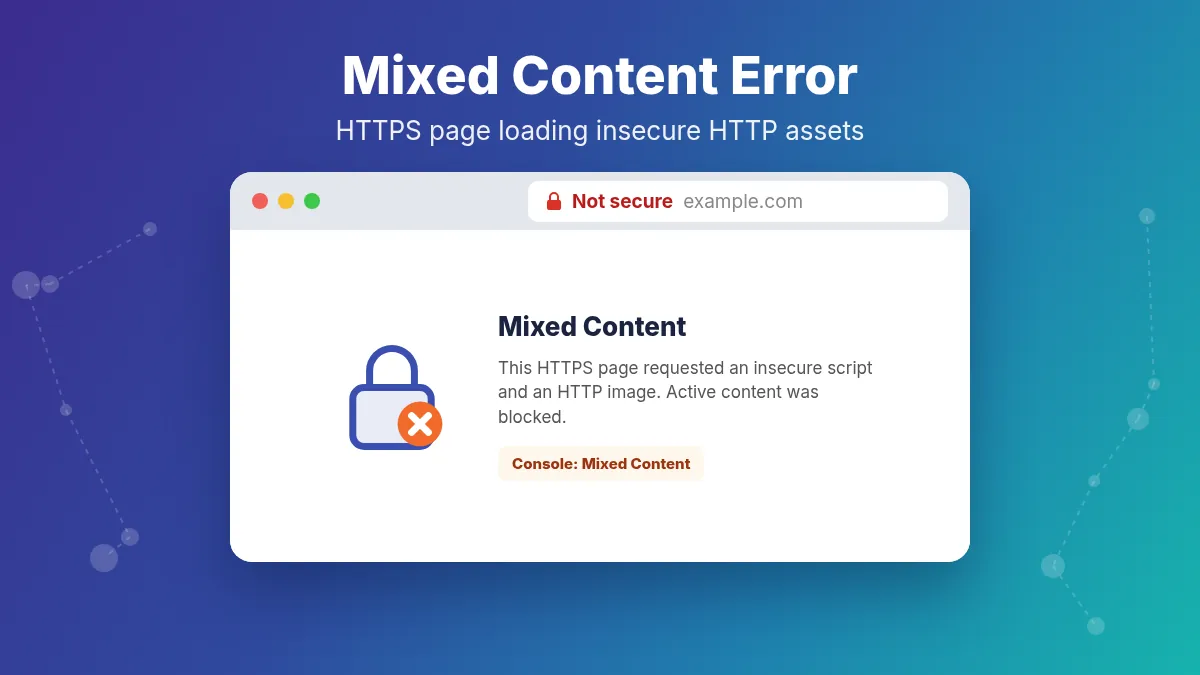
A mixed content error appears when an HTTPS page still loads one or more resources over plain HTTP. The HTML document is secure, but an image, script, stylesheet, font, iframe, or AJAX call is not. Modern browsers warn in the console and block active mixed content (scripts, XHR, iframes) so the page can look broken even though the certificate itself is valid.
I see this constantly after HTTP-to-HTTPS migrations: WordPress Address still on http, old image URLs in the database, hardcoded http links in a theme, or a CDN origin that still serves http asset URLs. The certificate can be perfect and the padlock still fails until every subresource is HTTPS too.
This guide expands the practical DevTools, WordPress URL, database replace, theme/plugin, CDN, and cache steps. If the browser refuses the connection entirely with a certificate warning, start with Your connection is not private or SSL certificate not trusted instead. Mixed content assumes HTTPS already works and only some assets are insecure.
Quick Fix
- Open DevTools (F12) → Console and Network; filter for mixed content or
http://requests. - Note every blocked or warned URL (script, image, CSS, font, XHR).
- In Settings → General, set WordPress Address and Site Address to
https://. - Run a careful search-and-replace of
http://yourdomain.comtohttps://yourdomain.comin the database (Better Search Replace, WP-CLI, or a trusted migration tool). - Fix hardcoded http URLs in the theme, child theme, Customizer CSS, and plugin settings.
- Update external embeds (analytics, fonts, maps, chat widgets) to their HTTPS endpoints.
- Purge browser, plugin, host, and CDN caches, then retest in a private window.
Most mixed content error cases clear once database URLs and a few theme strings are updated. Always replace with the real hostname you use in production (www vs non-www) so you do not create a second class of redirect problems.
What Is a Mixed Content Error?
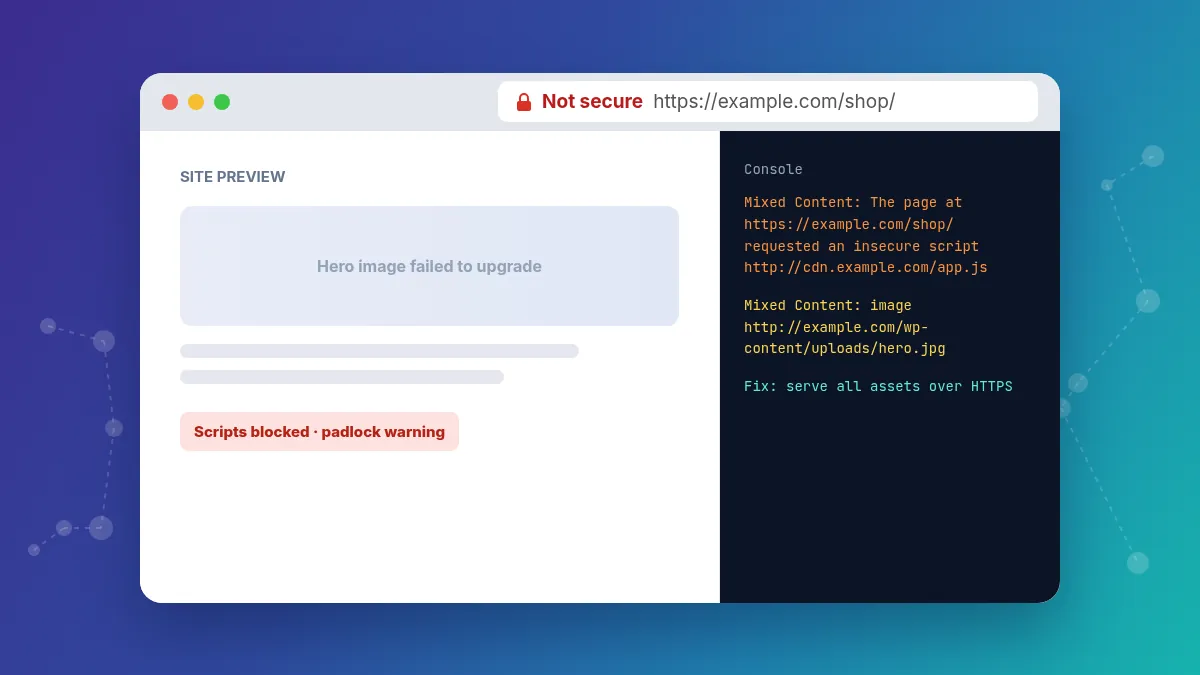
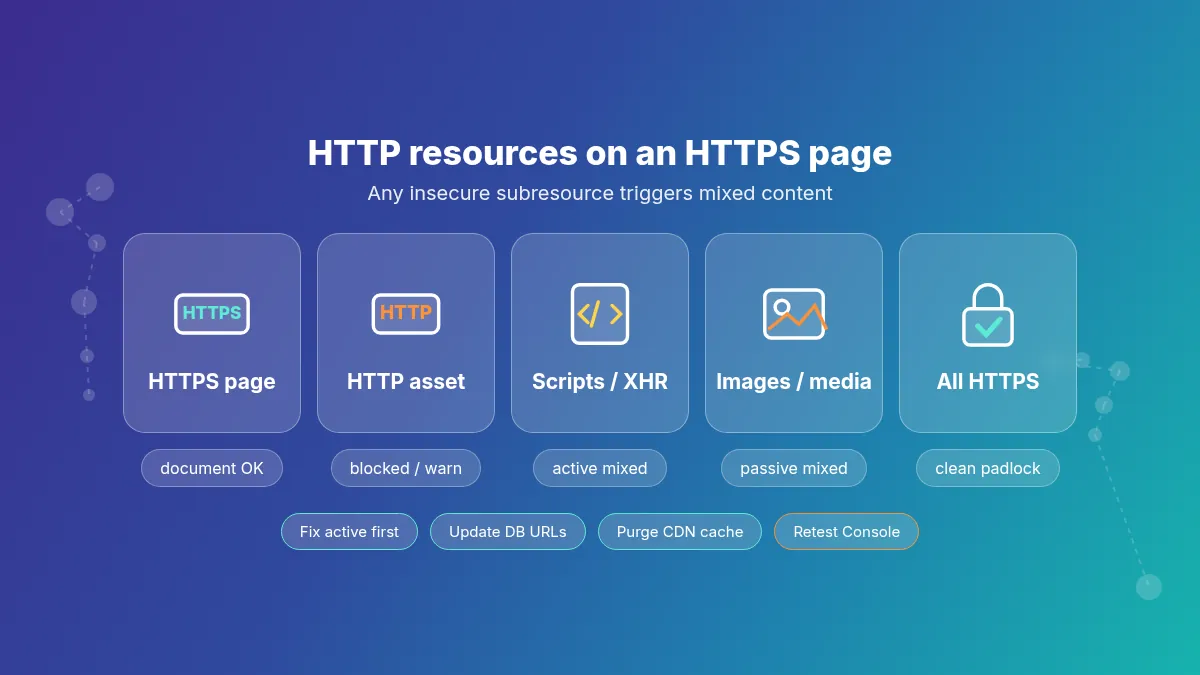
A page is fully secure only when the document and every subresource load over HTTPS. If the document is HTTPS but any subresource uses HTTP, the browser reports mixed content. You may see a crossed-out padlock, a “Not secure” label, console errors, or missing scripts and images.
Browsers treat two classes differently:
- Active mixed content — scripts, stylesheets used as scripts, iframes,
fetch/XHR, WebSockets. These are blocked by default because an attacker on the network could rewrite them. - Passive mixed content — images, video, audio. These may still load with a warning, but they weaken integrity and can still break strict CSP setups.
Active mixed content is the one that “breaks the site” after an SSL migration: menus, builders, carts, and tracking suddenly stop because their JS never runs. Passive mixed content is what leaves a warning on an otherwise working page.
Mixed content is different from certificate failures. Certificate name mismatches are covered in ERR_CERT_COMMON_NAME_INVALID. Handshake failures belong in SSL handshake failed. Redirect loops after forcing HTTPS are in too many redirects after SSL.
Why Mixed Content Happens
1. Leftover HTTP URLs After an SSL Migration
The classic cause. You installed a certificate and redirected HTTP to HTTPS, but post content, image src attributes, and options still store absolute http:// URLs. The HTML document loads on HTTPS; those assets do not.
2. WordPress Address Still on HTTP
If Settings → General still lists http:// for WordPress Address (URL) or Site Address (URL), WordPress generates insecure admin and front-end links. Fix these two fields first before a bulk database replace.
3. Hardcoded Links in Themes and Plugins
Older themes hardcode http://example.com/wp-content/... in header.php, footer.php, CSS, or JS. Page builders and widgets sometimes save absolute HTTP URLs in post meta. Child-theme custom CSS background images are a frequent stealth source.
4. External Scripts and Third-Party Widgets
Analytics tags, chat widgets, font CDNs, map embeds, and ad networks that still reference http:// endpoints trigger active or passive mixed content. Most vendors offer HTTPS; update the snippet. Remove abandoned widgets that never got an HTTPS endpoint.
5. CDN or Reverse Proxy Misconfiguration
A CDN may rewrite HTML to HTTPS while still emitting HTTP asset links from an old origin pull, or Flexible SSL-style setups may encrypt only the browser-to-CDN leg. Confirm the CDN is set to HTTPS origin pulls and that cached HTML was purged after the migration.
6. CSS, JSON, and API Calls
Background images in CSS files, JSON feeds with absolute HTTP URLs, and admin-ajax or REST calls forced to HTTP all count. Active mixed content on XHR is especially painful in wp-admin and WooCommerce checkouts.
How to Fix Mixed Content Error Step by Step
1. Identify the Exact Insecure Resources
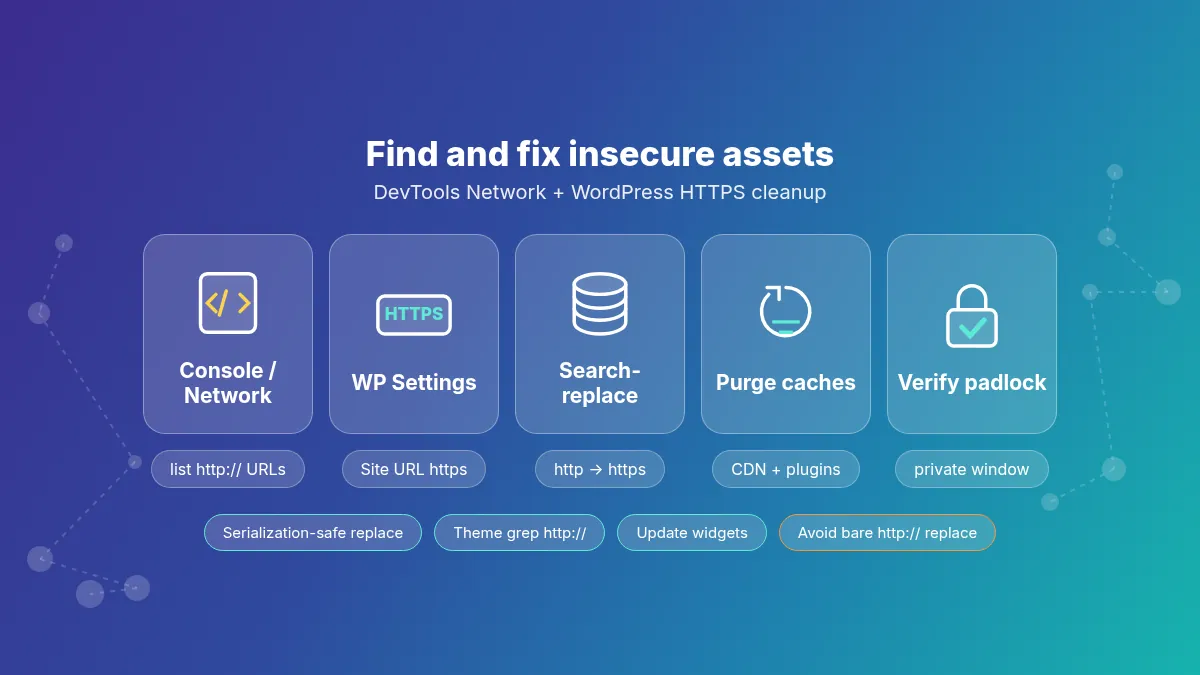
Do not guess. Let the browser list them:
- Open the page over
https://in Chrome, Edge, Firefox, or Brave. - Press F12 → Console. Look for messages containing Mixed Content.
- Open Network, reload, and filter by
http://or look for requests marked blocked. - Copy the full insecure URLs. Note whether each is a script, image, stylesheet, font, or XHR.
Fix the active (script/XHR) URLs first if the page is functionally broken. Passive image warnings can wait a few minutes but should still be cleared for a clean padlock.
2. Set WordPress URLs to HTTPS
In wp-admin go to Settings → General and ensure both:
- WordPress Address (URL) starts with
https:// - Site Address (URL) starts with
https://
If you cannot reach wp-admin because of a redirect loop, define the URLs in wp-config.php temporarily and see too many redirects after SSL:
define('WP_HOME', 'https://www.example.com');
define('WP_SITEURL', 'https://www.example.com');
Match www vs non-www to your canonical host and certificate coverage.
3. Replace HTTP Links in the Database
Posts, postmeta, options, and widget settings often still contain the old scheme. Use a serialization-safe tool:
- Plugin: Better Search Replace (dry-run first).
- WP-CLI:
wp search-replacewith the precise old and new URLs. - Migration tools that already rewrote URLs during a host move — verify they did not miss a table prefix.
# WP-CLI example — run from the WordPress root
wp search-replace 'http://www.example.com' 'https://www.example.com' --all-tables --dry-run
wp search-replace 'http://www.example.com' 'https://www.example.com' --all-tables
Also replace the non-www or www variant you actually used historically. Take a database backup before any write run. Do not blindly replace the bare string http:// across the whole database; that can break external links you intended to leave alone and can corrupt serialized data if the tool is not serialization-aware.
4. Fix Theme, Plugin, and Custom Code
Search the active theme and child theme for hardcoded http:
grep -R "http://" wp-content/themes/your-theme --include='*.php' --include='*.css' --include='*.js'
grep -R "http://" wp-content/plugins/suspect-plugin --include='*.php' --include='*.js'
Prefer https:// or protocol-relative / WordPress URL APIs (home_url(), content_url(), plugins_url()) instead of hardcoded hosts. Rebuild or re-save page-builder pages that baked HTTP into their JSON.
5. Update External Services and Embeds
Replace HTTP endpoints for:
- Google Fonts, Typekit, or self-hosted font CSS
- Analytics and tag managers
- Maps, video players, and iframes
- Chat, heatmap, and A/B testing scripts
- Old CDN hostnames that only spoke HTTP
If a vendor has no HTTPS endpoint, remove or replace the embed. Leaving it guarantees an active or passive mixed content error forever.
6. Confirm HTTPS Redirects (Without Expecting Them to Fix Assets)
A sitewide 301 from HTTP to HTTPS is necessary for users and SEO, but redirects alone do not rewrite URLs already embedded inside HTML, CSS, or JSON. You still need the database and file fixes above. HSTS can strengthen HTTPS enforcement after the site is clean; see HSTS error before you enable a long max-age.
7. Clear Every Cache Layer
After URL fixes:
- Purge the page cache plugin and object cache.
- Purge the host cache / LiteSpeed / NGINX cache.
- Purge the CDN entirely (not just one URL) once.
- Retest in a private window or a fresh browser profile.
Cached HTML is the number-one reason mixed content error warnings survive after a correct database replace.
Advanced Troubleshooting
Inspect CSS Background Images
DevTools Console may name a CSS file rather than an image. Open that stylesheet and search for http:// inside url(...). Theme options panels sometimes write those URLs into Customizer CSS that lives in the database, not on disk.
Check Content Security Policy
A strict CSP with upgrade-insecure-requests can auto-upgrade many HTTP subresources, which hides the problem in some browsers while others still warn. Use CSP as defense in depth after you fix sources, not as the only fix. Confirm Security headers are not fighting your CDN.
Test With the CDN Bypassed
Temporarily point DNS to origin or use a hosts-file override so you hit the server directly. If mixed content disappears off-CDN, purge and reconfigure the CDN SSL mode. If it remains, the origin HTML still contains HTTP URLs.
WooCommerce, Multilingual, and Page Builders
These stacks store more absolute URLs in meta and options. After search-replace, re-save permalinks, regenerate seller or product image sizes if needed, and clear builder CSS cache. Check email templates too; insecure image links in mail are a different channel but often share the same root cause.
Protocol-Relative URLs and Force SSL Plugins
Old protocol-relative URLs starting with //example.com usually load HTTPS on an HTTPS page and are fine. Problems remain when something rewrites them back to HTTP, or when a “Force SSL” plugin conflicts with server redirects and creates loops. Prefer real https:// absolute URLs or WordPress URL helper functions, and disable redundant force-SSL plugins once the host and CDN already terminate SSL correctly.
Email, RSS, and Off-Page HTTP Copies
Transactional email HTML and RSS full-text feeds can still embed HTTP images after the site itself is clean. Those do not always show in the browser Console on the front page, but they matter for brand trust. Re-run search-replace on options that store mail templates, and regenerate marketing emails that were exported before the migration.
Elementor / Gutenberg Reusable Blocks
Reusable blocks and global widgets can keep old HTTP strings after a global replace if they were cached as generated CSS. Regenerate CSS/files from the builder settings and purge again.
Does Mixed Content Affect SEO and Trust?
Yes. Blocked active mixed content can remove critical scripts, break Core Web Vitals-related behavior, and hurt conversions. Google expects a coherent HTTPS site; leftover HTTP assets undermine that. Browsers visibly downgrade trust UI, which users notice on checkout and login pages. Fixing mixed content is part of finishing an SSL migration, not an optional polish step. For a broader triage order across DNS, SSL, and application errors, see how to fix website errors.
How to Prevent Mixed Content
- Set WordPress URLs to HTTPS before or immediately after issuing the certificate.
- Use serialization-safe search-replace as a standard post-migration checklist item.
- Prefer theme functions that generate URLs over hardcoded hosts.
- Audit Console after every major plugin or theme update.
- Configure the CDN for HTTPS origin and purge after URL rewrites.
- Enable HSTS only after the site is fully clean on HTTPS.
- Keep staging and production on HTTPS so content never reintroduces HTTP while editing.
When to Contact Support
Contact the host or CDN support when:
- You cannot find the insecure URL in Console because a middlebox strips headers.
- CDN edge keeps serving old HTTP asset links after a full purge.
- HTTPS redirects loop (use the redirects guide in parallel).
- Managed WordPress search-replace tools refuse to touch a locked table.
Provide the exact Console mixed content lines, your canonical HTTPS hostname, and whether the problem appears with the CDN bypassed.
Frequently Asked Questions
It means an HTTPS page is loading at least one image, script, stylesheet, font, or request over plain HTTP. The document is secure but a subresource is not.
Active mixed content is. Blocked or injected scripts can compromise the page. Passive mixed content is lower risk but still weakens trust and can show browser warnings.
Yes. A single insecure image can produce a console warning and a degraded padlock even when every script is HTTPS.
No. Redirects send users to HTTPS but do not rewrite HTTP URLs already stored inside HTML, CSS, or the database. You must update those sources.
Old absolute HTTP links usually remain in post content, options, and theme files until you run a careful search-and-replace and purge caches.
Many sites are clean within an hour once Console lists the URLs. Large databases or custom themes can take longer if hardcoded links are scattered.
Final Thoughts
A mixed content error means your HTTPS setup is unfinished: the certificate may be fine, but at least one asset still loads over HTTP. Identify the URLs in DevTools, set WordPress to HTTPS, replace database links safely, fix theme and third-party snippets, then purge every cache.
If the browser blocks the whole site with a certificate warning, switch to Your connection is not private or SSL certificate not trusted. For redirect loops after forcing SSL, use too many redirects after SSL. For handshake issues, see SSL handshake failed.
Related SSL Errors
- Your Connection Is Not Private
- SSL Certificate Not Trusted
- Too Many Redirects After SSL
- HSTS Error
- ERR_CERT_COMMON_NAME_INVALID
- SSL Handshake Failed
- How to Fix Website Errors

Hi, I’m Alex — the person behind ErrorRescue.
I’ve been working with websites, servers, and hosting for over 8 years. Most of my experience comes from troubleshooting real problems on WordPress sites, VPS and shared hosting environments, and Cloudflare setups. I’ve dealt with everything from SSL certificate failures and DNS misconfigurations to 504 timeouts, memory exhaustion errors, and Cloudflare 5xx issues.
I started ErrorRescue because I got tired of seeing generic, outdated, or incomplete error guides. My goal is to write clear, practical fixes based on what actually works in production — not just theory. Every guide here is tested against common server setups (Apache, NGINX, Cloudflare, and popular WordPress stacks).
When I’m not fixing sites, I’m usually reviewing new hosting configurations or updating existing guides so they stay accurate.