
PR_END_OF_FILE_ERROR is a Firefox-specific secure connection error. It appears when Firefox starts an HTTPS connection but the connection is closed before the TLS handshake can finish, so no trusted secure session is established and Firefox shows a Secure Connection Failed page.
This error is common on sites that otherwise work in Chrome or Edge, which makes it confusing. In real cases, the cause is often not the website alone. It is more likely to be a VPN, proxy, antivirus HTTPS scanning, modified Firefox security settings, DNS over HTTPS behavior, or a server or CDN that does not offer a compatible TLS configuration for that hostname.
Quick Fix
- Open the site in a private Firefox window and test again.
- Test the same site in another browser to confirm whether the issue is Firefox-specific.
- Disable VPN, proxy, and antivirus HTTPS scanning temporarily.
- In Firefox, go to Settings → General → Network Settings and choose No proxy or Use system proxy settings.
- Turn Firefox DNS over HTTPS off temporarily and retest.
- Reset any changed
security.tlsandsecurity.ssl3preferences inabout:config. - Clear cookies and cache for the affected site, then restart Firefox completely.
- Refresh Firefox if the problem affects many secure websites.
- If the site works on another network, test whether your ISP, router, or local filtering is involved.
- If you own the site, check TLS 1.2/1.3 support, the certificate for every hostname, and your CDN SSL settings.
What Is PR_END_OF_FILE_ERROR?
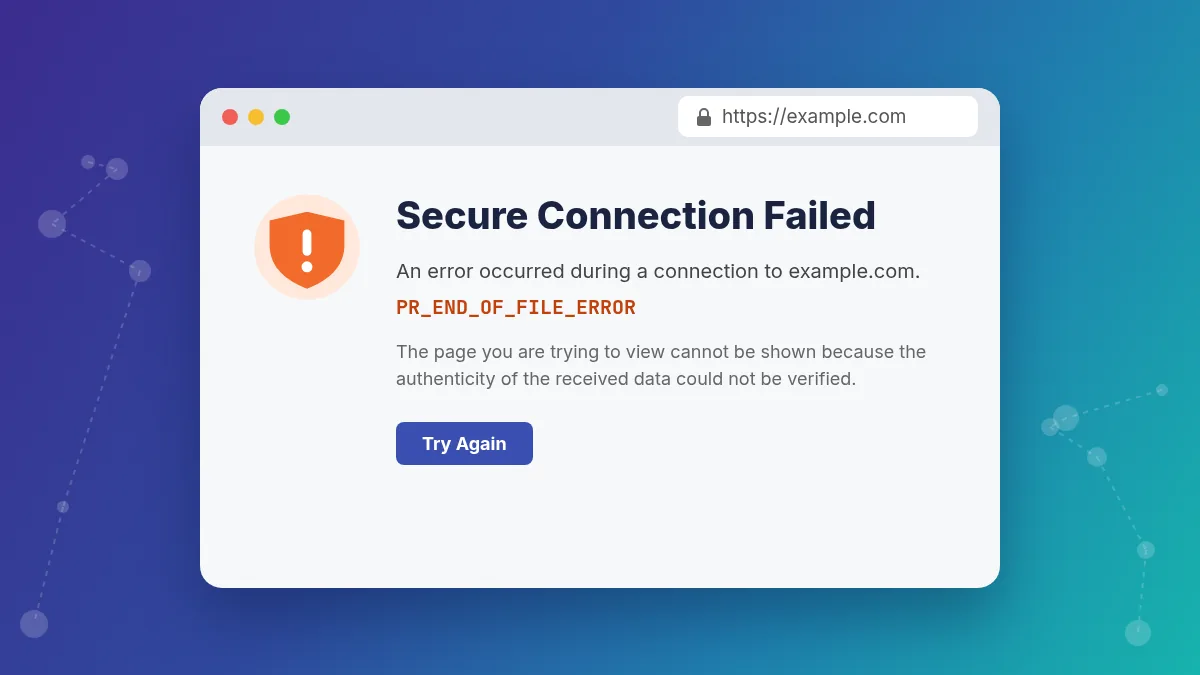
PR_END_OF_FILE_ERROR is a Firefox secure connection error shown on pages titled Secure Connection Failed. Mozilla support identifies it as an error that appears when Firefox cannot establish a secure connection.
The name comes from the NSPR networking library that Firefox uses: end of file means Firefox reached the end of the data stream. In plain language, Firefox sent its TLS hello and was waiting for the server’s reply, but the connection was closed before the handshake finished. Something between Firefox and the site, or the server itself, hung up.
You will usually see something like this:
Secure Connection Failed

An error occurred during a connection to example.com.
PR_END_OF_FILE_ERROR

The page you are trying to view cannot be shown because the authenticity of the received data could not be verified.
This is not the same as a timeout, a refused connection, or a simple DNS error.
- Timeout means the browser waited too long for any answer.
- Connection refused means the server did not accept the connection at all.
- PR_END_OF_FILE_ERROR means the connection opened but closed during the TLS handshake.
- SSL_ERROR_RX_RECORD_TOO_LONG means Firefox received data that is not TLS at all, often plain HTTP on port 443.
- SEC_ERROR_UNKNOWN_ISSUER means the handshake completed far enough for Firefox to see a certificate it does not trust.
In Chrome and Edge, the same underlying problem usually shows up as ERR_SSL_PROTOCOL_ERROR, ERR_CONNECTION_RESET, or ERR_SSL_VERSION_OR_CIPHER_MISMATCH.
Why PR_END_OF_FILE_ERROR Happens
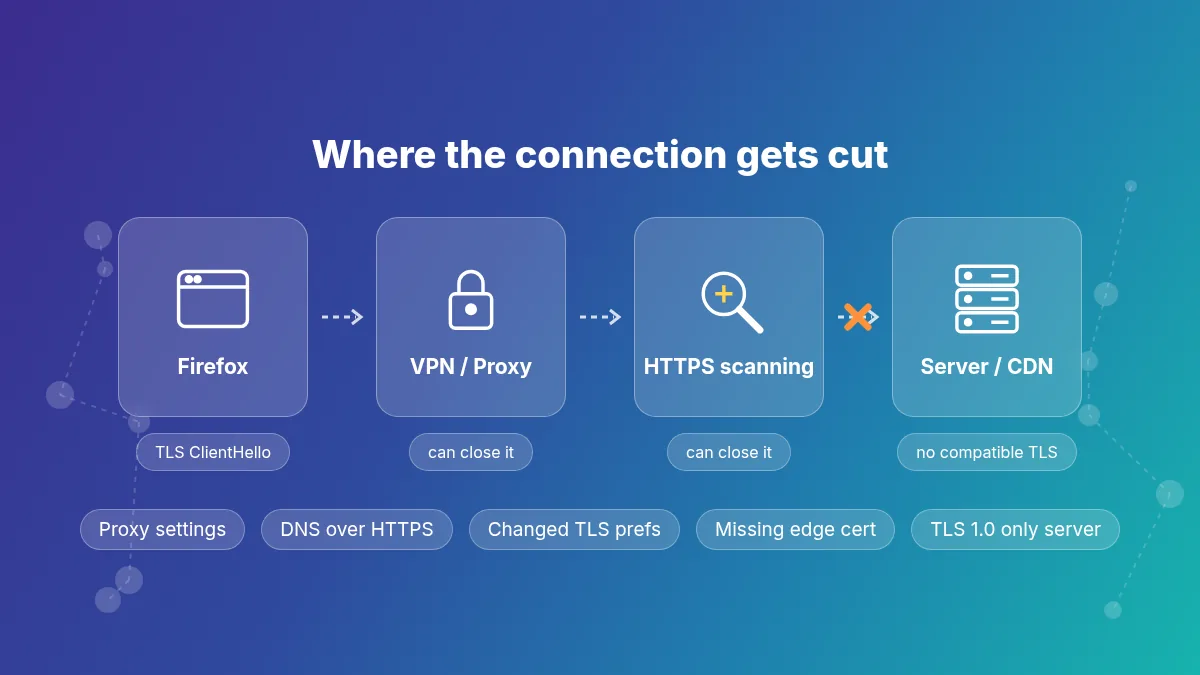
Most real cases come from a short list of causes. The first five are on your device or network. The last ones are on the website side.
1. Antivirus or Security Software Is Inspecting HTTPS Traffic
This is one of the most common causes. Mozilla support notes that secure connection errors like this can be caused by antivirus or other software that intercepts secure connections. HTTPS scanning, web protection, and encrypted traffic inspection sit in the middle of the TLS connection and can close it when they cannot handle the site’s TLS settings, even when the site is technically fine.
This is more likely if:
- the site works in another browser,
- many secure websites fail in Firefox,
- the problem started after a security software update,
- disabling web protection changes the result.
2. A VPN or Proxy Is Interfering
Mozilla support lists Firefox connection settings that use a proxy as a cause of PR_END_OF_FILE_ERROR, and forum solutions repeatedly point to VPN software. A proxy or VPN that cannot pass the TLS connection through correctly, or that is blocked or overloaded, closes the connection mid-handshake.
This is more likely when:
- the error appears only on one network path,
- the site works when the VPN is off,
- Firefox is set to a manual proxy or uses a proxy extension,
- one VPN exit location fails but another works.
3. Firefox DNS over HTTPS Is Causing a Path Difference
If Firefox resolves the domain with DNS over HTTPS while the operating system uses another resolver, Firefox may connect to a different IP address than other browsers. If that address points to an old server, a filtering service, or the wrong CDN edge, the handshake can fail only in Firefox.
This is more likely after:
- DNS changes or a server migration,
- regional routing issues,
- split DNS environments in companies,
- changing resolver or network settings.
4. Firefox Security Preferences Were Changed
Privacy guides, hardening scripts, and some security tools change advanced preferences in about:config. If security.tls.version.min and security.tls.version.max are set to unusual values, or many security.ssl3.* cipher suites are disabled, Firefox may offer settings that the server or a middlebox cannot accept, and the connection ends during the handshake.
5. The Browser Profile or Firefox State Is Damaged
Mozilla support guidance often suggests refreshing Firefox or testing with a new profile when secure connection errors keep returning. That is a sign that profile state, stored settings, or extensions may be part of the problem.
6. The Problem Is Local to One Network
If the site works on mobile data or a different Wi-Fi network, the issue may be your ISP path, router filtering, a company firewall doing TLS inspection, or parental controls. This is especially likely when the error affects several secure sites in Firefox but not elsewhere.
7. The Website Server Has Broken or Outdated TLS
Server-side causes are real. Firefox disabled TLS 1.0 and TLS 1.1 by default in version 78, so a server that still only offers those versions, or only very old cipher suites, cannot complete a handshake with current Firefox. Other common server causes are:
- no HTTPS virtual host or certificate for the exact hostname (for example
wwwis missing), - a default server configured to reject unknown hostnames,
- a load balancer, firewall, or intrusion prevention system closing TLS connections,
- a web server that crashed or reloaded with a broken SSL configuration.
8. The CDN Has No Valid Edge Certificate for the Hostname
If the site uses Cloudflare or another CDN, the browser does its TLS handshake with the CDN edge, not your server. If the edge has no active certificate for that exact hostname, the handshake fails before any page is served. This happens with brand-new domains whose certificate is still being issued, and with deeper subdomains such as shop.eu.example.com that a standard certificate does not cover.
How to Fix PR_END_OF_FILE_ERROR Step by Step
Start with the fastest isolating tests. Then move into Firefox-specific settings and secure traffic interference. If you own the site, jump to the server section after step 2.
1. Confirm Whether the Error Is Firefox-Specific
Open the same site in another browser such as Chrome, Edge, or Safari on the same device and network.
- If the site works elsewhere, the issue is more likely Firefox, its settings, or local filtering that treats Firefox differently.
- If the site fails everywhere, the site itself or the network path is the stronger suspect.
For more on this pattern, see why a website is not loading on one browser only.
2. Check Whether One Site or Many Sites Fail
- If one site fails, the site’s TLS setup, its CDN, or Firefox’s saved data for that site may be the issue.
- If many HTTPS sites fail, local antivirus, a proxy, a VPN, DNS over HTTPS, changed preferences, or profile damage is much more likely.
3. Open the Site in a Private Window or Troubleshoot Mode
A private window checks whether cookies or saved site state are involved. For a stronger test, open Help → Troubleshoot Mode, which temporarily turns off extensions and some custom settings.
- If it works in Troubleshoot Mode, disable extensions one by one and clear site data next.
- If it still fails there, move to proxy, VPN, antivirus, DNS over HTTPS, and preference checks.
4. Disable VPN and Proxy Settings Temporarily
Disconnect the VPN completely. Then open Settings → General, scroll to Network Settings, select Settings, and switch to No proxy or Use system proxy settings. If a proxy auto-configuration (PAC) URL is set and you do not know why, remove it and retest. Also disable proxy or VPN extensions.
5. Disable Antivirus HTTPS Scanning or Web Protection
Temporarily disable HTTPS scanning, encrypted traffic inspection, SSL filtering, or web protection in your security software, then restart Firefox and test again. If the site works, the problem is not the website itself. Update the security software, or add an exception for the site, rather than leaving protection off permanently.
6. Turn Off Firefox DNS over HTTPS Temporarily
Open Settings → Privacy & Security, scroll to DNS over HTTPS, and select Off. Restart Firefox and retest. If the site starts working, Firefox’s resolver path was part of the issue. You can then try a different DNS over HTTPS provider instead of leaving it off.
7. Reset Changed TLS and Cipher Preferences in about:config
Type about:config in the address bar and accept the warning. Search for each of these and, if the value is shown in bold (changed from default), click the Reset arrow on the right:
security.tls.version.min      default: 3  (TLS 1.2)
security.tls.version.max      default: 4  (TLS 1.3)
security.tls.version.fallback-limit
security.ssl3.                (reset any modified cipher prefs)
security.tls.enable_0rtt_data
network.proxy.type            default: 5  (use system proxy)
Only reset values; do not invent new ones. If you used a hardening user.js file, it will set the values again at next start, so edit or remove that file in your profile folder as well.
8. Clear Cookies and Cache for the Site
If the problem affects one secure site only, open the padlock or site information icon, choose Clear cookies and site data, and test again. This is especially useful after site migrations, HTTPS changes, and redirect fixes.
9. Restart Firefox Fully
Do not just close the tab. Exit Firefox completely and reopen it. This clears temporary connection state and applies changes to proxy, DNS over HTTPS, and preferences reliably.
10. Refresh Firefox If Many Secure Sites Fail
Open about:support and select Refresh Firefox. This creates a fresh profile and keeps bookmarks, history, passwords, and cookies, but removes extensions and resets customized preferences. It is a strong step and useful when the profile contains bad configuration that you cannot find manually.
11. Test Another Network
- mobile data,
- another Wi-Fi network,
- turning off a corporate VPN,
- a home network instead of office Wi-Fi.
If the site works elsewhere, your router, ISP path, company firewall, or local filtering layer is the stronger suspect.
12. Fix It on Android and Mac
On Android, the usual causes are VPN or ad-blocking apps, a Private DNS setting, and security apps. Disable them one at a time, clear site data from Firefox settings, and retest on mobile data. On Mac, check for network filter extensions from security, VPN, or content-filtering apps in System Settings → Network, and test with them disabled.
13. Review Recent Changes First
Ask what changed before the error started:
- new antivirus or endpoint security,
- new VPN or proxy settings,
- a Firefox update or privacy hardening guide,
- DNS changes,
- server, CDN, or SSL changes.
Most PR_END_OF_FILE_ERROR cases begin right after one of those changes.
Fixes If You Own the Website
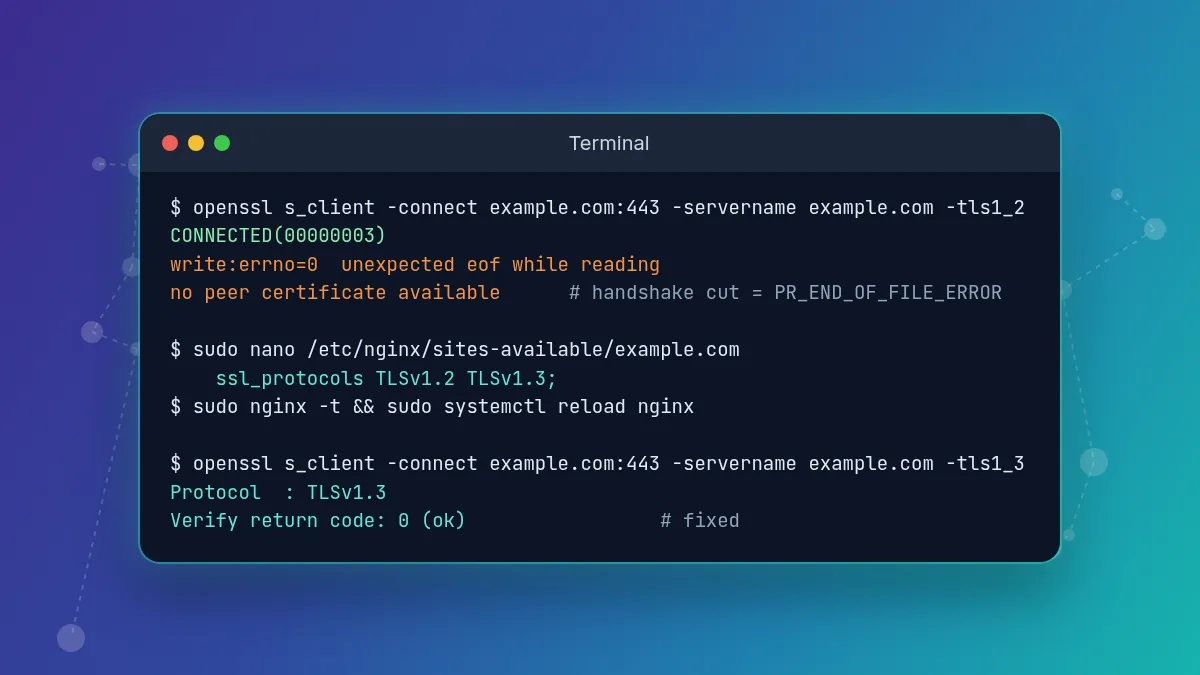
If the error affects one site for many visitors, check the server and CDN. Test from a machine outside your network.
1. Test the TLS Handshake from the Command Line
# Does a TLS 1.2 / TLS 1.3 handshake complete for this hostname?
openssl s_client -connect example.com:443 -servername example.com -tls1_2 </dev/null
openssl s_client -connect example.com:443 -servername example.com -tls1_3 </dev/null

# Verbose HTTPS request with handshake details
curl -Iv https://example.com/

# List the protocols and ciphers the server offers
nmap --script ssl-enum-ciphers -p 443 example.com
A healthy result shows a certificate chain and a Protocol line with TLSv1.2 or TLSv1.3. If you see unexpected eof while reading, no peer certificate available, or the connection closes right after the hello, the server or something in front of it is ending the handshake. That matches what Firefox reports as PR_END_OF_FILE_ERROR. Repeat the test for both example.com and www.example.com.
2. Enable TLS 1.2 and TLS 1.3 with Modern Ciphers
Current browsers expect TLS 1.2 or TLS 1.3. In NGINX:
server {
    listen 443 ssl;
    server_name example.com www.example.com;
    ssl_certificate     /etc/ssl/example.com/fullchain.pem;
    ssl_certificate_key /etc/ssl/example.com/privkey.pem;
    ssl_protocols TLSv1.2 TLSv1.3;
}
In Apache:
SSLEngine on
SSLProtocol -all +TLSv1.2 +TLSv1.3
SSLCertificateFile    /etc/ssl/example.com/fullchain.pem
SSLCertificateKeyFile /etc/ssl/example.com/privkey.pem
Test the configuration (nginx -t or apachectl configtest) before reloading. If the server software or OpenSSL is too old for TLS 1.2, update it; there is no browser-side workaround for that. If you need help choosing ciphers, the Mozilla SSL Configuration Generator gives tested settings for common servers.
3. Make Sure Every Hostname Has an HTTPS Virtual Host and Certificate
With SNI, the server picks a certificate based on the hostname. If www, a new subdomain, or a parked domain has no HTTPS server block, the request can land on a default server that rejects or closes the handshake. Add the hostname to the right server block and to the certificate. If the hostname is covered but the name does not match, you will see SSL_ERROR_BAD_CERT_DOMAIN instead.
4. Check Cloudflare or CDN SSL Settings
If the site is behind Cloudflare with the orange-cloud proxy enabled, open SSL/TLS → Edge Certificates and confirm the certificate status is Active and covers the exact hostname. Universal SSL covers the apex domain and first-level subdomains such as www.example.com; deeper subdomains need an advanced certificate. Also check:
- the SSL/TLS encryption mode is not Off; Full (strict) with a valid origin certificate is the recommended setting,
- Minimum TLS Version is not set higher than your visitors’ browsers support,
- origin certificate problems show up as Error 525 or Error 526 pages, not as a Firefox handshake error.
5. Check Firewalls, Load Balancers, and Security Modules
Firewalls, intrusion prevention systems, and DDoS filters can close TLS connections they dislike, such as connections from certain countries or with certain TLS fingerprints. Check their logs for dropped connections at the same time as the error, and confirm the load balancer listener on port 443 has the correct certificate attached.
6. Review Recent Server Changes
Server hardening, a certificate renewal, a new reverse proxy, or a control panel update can change TLS settings. If the error started after a change, compare the configuration before and after and roll back the part that removed protocols, ciphers, or hostnames.
Advanced Troubleshooting
Compare Firefox with Another Browser on the Same Device
- If Firefox alone fails, focus on Firefox settings, DNS over HTTPS, proxy, extensions, preferences, and local HTTPS interception.
- If all browsers fail, the network path or the site itself becomes more likely.
Treat Secure Traffic Interception as a Top Suspect
Mozilla’s support materials repeatedly point to software that intercepts secure connections. This is not a rare edge case. It is one of the most realistic causes, especially on Windows systems with security suites installed and on company networks with TLS inspection.
Check Whether HSTS or Redirects Are Involved
If a site sends HSTS, Firefox will only connect over HTTPS and will not let you bypass errors for that domain. A broken TLS setup on such a site cannot be worked around from the browser. See the HSTS error guide for details.
Look at the Network Panel
Open the developer tools with Ctrl+Shift+E (or Cmd+Option+E on Mac) and load the page. If the request has no status code and no response headers, the failure happened during connection setup, which confirms a TLS or network-path problem rather than an application error.
Prevention Tips
- Keep Firefox updated.
- Use VPN and proxy tools only when needed, and keep them updated.
- Be careful with antivirus HTTPS scanning and keep the security software current.
- Avoid changing
security.tlsand cipher preferences unless you know why. - Review Firefox DNS over HTTPS after DNS or network changes.
- Test important HTTPS sites in Firefox and another browser after server or CDN changes.
- Keep server TLS 1.2/1.3 enabled and cover every hostname with a valid certificate.
The best prevention is simple: keep the secure connection path clean and avoid stacking too many layers between Firefox and the website.
When to Contact Support
Contact the website owner or hosting provider if:
- the issue affects one site only and survives local browser fixes,
- the site fails in every browser and on every network,
- the error started after server-side SSL or CDN changes.
Contact your IT or security admin if:
- the browser is managed by company policy,
- HTTPS inspection may be in use,
- proxy settings are enforced,
- the issue affects many secure sites on a managed machine.
Focus on local Firefox troubleshooting if:
- other browsers work,
- Troubleshoot Mode or a private window changes the result,
- turning off VPN or antivirus changes the result,
- DNS over HTTPS, proxy, or about:config values differ from defaults.
FAQ
It means Firefox started an HTTPS connection but the connection was closed before the TLS handshake finished, so Firefox could not set up a secure session and shows Secure Connection Failed.
Turn off your VPN and proxy, disable antivirus HTTPS scanning, set Firefox network settings to No proxy or system proxy, turn off DNS over HTTPS, and restart Firefox. If many sites still fail, reset changed security.tls preferences or refresh Firefox.
Firefox has its own proxy settings, DNS over HTTPS, TLS preferences, and certificate store, and security software can hook into it differently. Any of these can break the handshake only in Firefox.
Yes. Antivirus HTTPS scanning sits in the middle of the secure connection. If it cannot handle the connection it may close it, which Firefox reports as PR_END_OF_FILE_ERROR.
Yes. A server that offers only TLS 1.0 or 1.1, has no HTTPS configuration for that hostname, or sits behind a firewall that drops TLS connections can cause it. A CDN without an active edge certificate for the hostname can cause it too.
There is no bypass button, because no secure connection was created. Fix the cause instead of using older TLS settings, which would make your browser less secure.
Final Thoughts
PR_END_OF_FILE_ERROR looks mysterious because it often appears only in Firefox. In practice, the most common causes are local secure traffic interference, VPN or proxy behavior, Firefox connection settings, changed TLS preferences, DNS over HTTPS differences, or a website or CDN TLS configuration that ends the handshake.
Start with the fast checks first: another browser, Troubleshoot Mode, VPN off, proxy off, HTTPS scanning off, DNS over HTTPS off. Then reset preferences or refresh Firefox. If you own the site, test the handshake with openssl, enable TLS 1.2 and 1.3, and confirm every hostname has a valid certificate. That order solves most PR_END_OF_FILE_ERROR cases much faster than random troubleshooting.
Related SSL Errors
- SSL_ERROR_RX_RECORD_TOO_LONG
- SEC_ERROR_UNKNOWN_ISSUER
- SSL Handshake Failed (Browser Version)
- ERR_SSL_PROTOCOL_ERROR
- HSTS Error
- ERR_SSL_KEY_USAGE_INCOMPATIBLE

Hi, I’m Alex — the person behind ErrorRescue.
I’ve been working with websites, servers, and hosting for over 8 years. Most of my experience comes from troubleshooting real problems on WordPress sites, VPS and shared hosting environments, and Cloudflare setups. I’ve dealt with everything from SSL certificate failures and DNS misconfigurations to 504 timeouts, memory exhaustion errors, and Cloudflare 5xx issues.
I started ErrorRescue because I got tired of seeing generic, outdated, or incomplete error guides. My goal is to write clear, practical fixes based on what actually works in production — not just theory. Every guide here is tested against common server setups (Apache, NGINX, Cloudflare, and popular WordPress stacks).
When I’m not fixing sites, I’m usually reviewing new hosting configurations or updating existing guides so they stay accurate.