
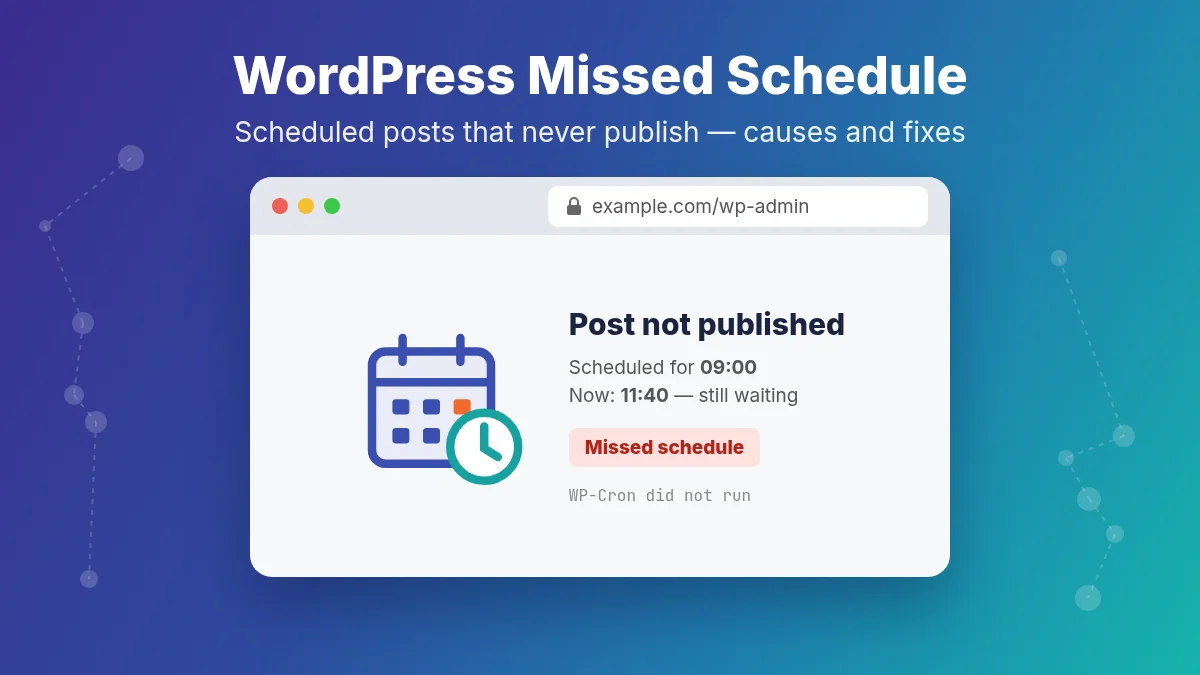
WordPress Missed Schedule means a post was set to publish later, but the publish task never ran at the right time. The post itself is fine; WP-Cron did not fire, usually because the site had no visits at that moment, DISABLE_WP_CRON is set without a real server cron, or the loopback request to wp-cron.php is blocked. Fix the trigger, then publish the missed posts manually.
This guide shows how to confirm that cron is the problem, how to fix each common cause, how to replace traffic-based WP-Cron with a real cron job in a hosting panel or over SSH, and how to publish every missed post once the trigger works again.
Quick checks
- Open Posts → All Posts → Scheduled: a post still listed there after its publish time (WordPress labels it “Missed schedule”) confirms cron did not run.
- Check the timezone in Settings → General; a city such as Europe/Berlin is safer than a manual UTC offset.
- Search
wp-config.phpforDISABLE_WP_CRON. - Open Tools → Site Health and look for “A scheduled event has failed”, “A scheduled event is late” or “Your site could not complete a loopback request”.
- With shell access, run
wp cron test. - Open
https://your-site.com/wp-cron.phpin a private window. A blank page is normal; a 403 Forbidden, 401 Unauthorized or challenge page means something blocks cron.
What Is WordPress Missed Schedule?
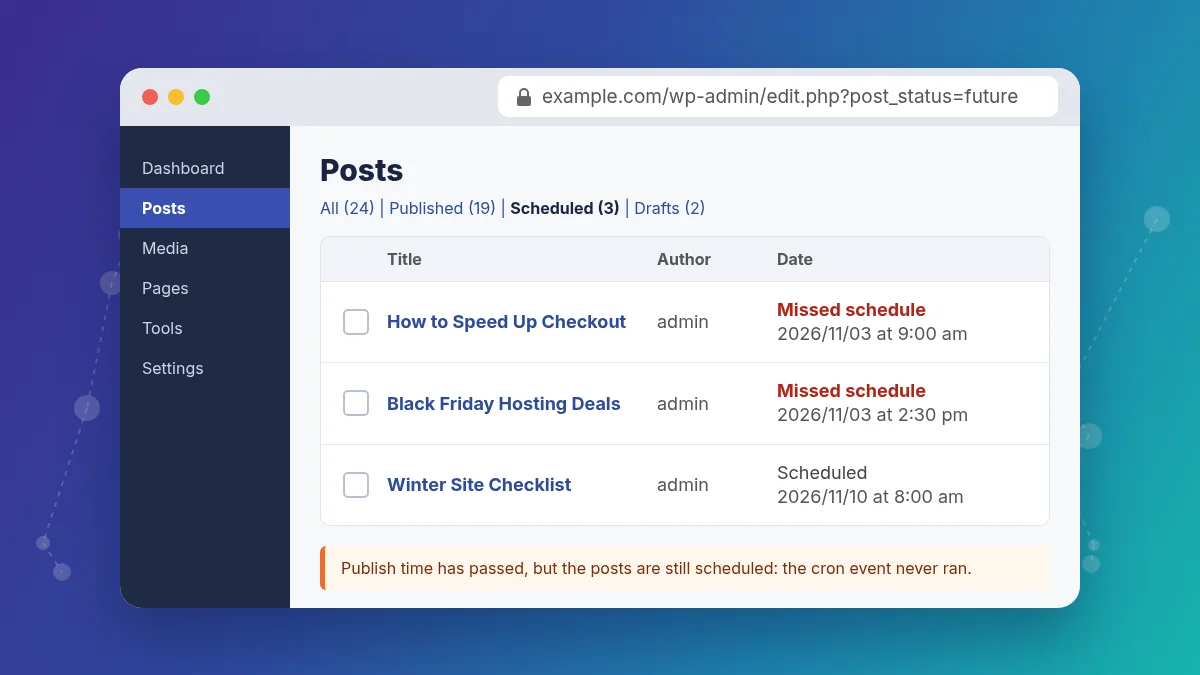
WordPress Missed Schedule is the common name for a failure in WordPress scheduled publishing. A post is set to go live at a future time, but it stays unpublished because the scheduled task never runs correctly. WordPress uses its cron system, usually called WP-Cron, to handle time-based tasks such as publishing scheduled posts, update checks, and other automated jobs.
WP-Cron is not a true system cron by default. WordPress checks scheduled tasks when someone visits the site. If the scheduled time has already passed, WordPress tries to run the task during that page load. That design is convenient, but it also explains why missed schedule problems happen so often. Low traffic, blocked loopback requests, plugin conflicts, and disabled cron can all prevent the publish task from firing on time.
You may notice symptoms like these:
- a post remains scheduled even after the publish time has passed,
- the Date column in the posts list shows “Missed schedule” in red,
- a plugin reports a missed schedule,
- scheduled posts only publish when someone visits the site,
- Site Health shows cron-related problems,
- scheduled jobs fail after moving hosting or changing firewall rules,
- other background tasks are late too: automatic updates, backups, newsletter sends, or cache preloading.
The last point is a useful clue. If only one post missed its slot, look at that post and its plugins. If every scheduled job on the site is late, the cron trigger itself is broken.
How WP-Cron Publishes a Scheduled Post
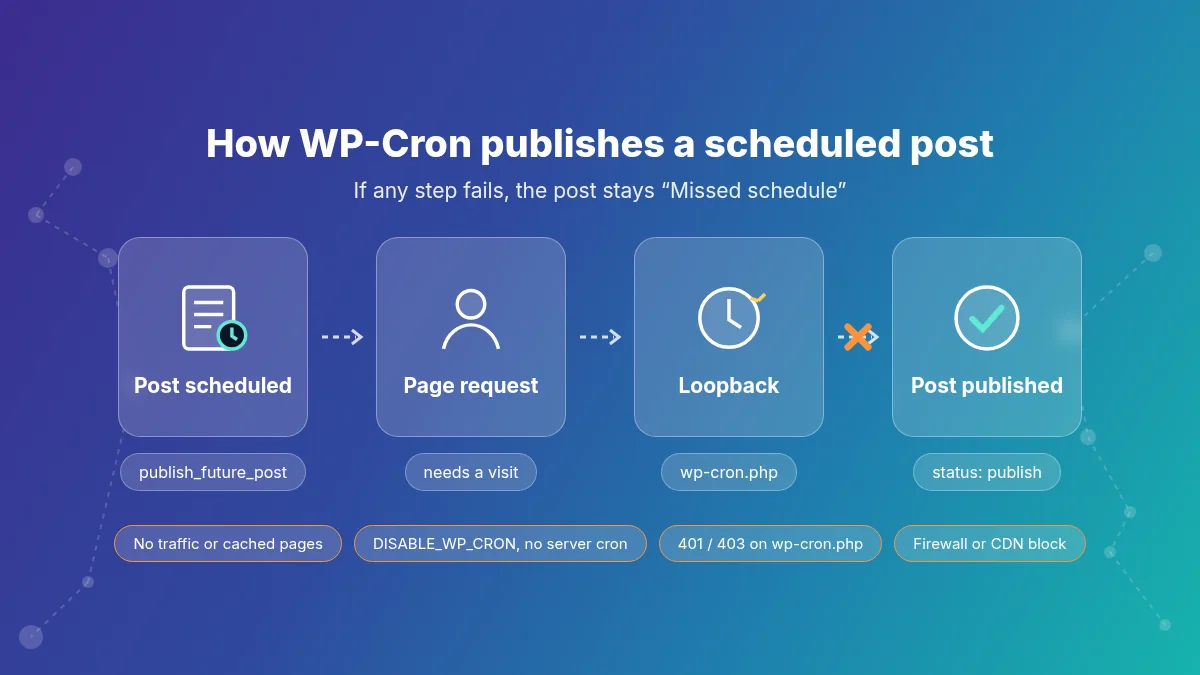
Knowing the chain of events makes the causes below much easier to diagnose. When you click Schedule, WordPress saves the post with the status future and registers a one-time cron event with the hook publish_future_post for the publish time. Nothing else happens at that moment.
- A request arrives. A visitor, a bot, or you in wp-admin loads any page after the publish time.
- WordPress checks the cron queue. During that request it sees an event whose time has passed.
- WordPress calls itself. It sends a quick background HTTP request (a loopback) to
https://your-site.com/wp-cron.phpand does not wait for the answer, so the visitor’s page is not slowed down. - wp-cron.php runs the due events. For
publish_future_postit changes the post status topublish, which also fires the normal publish actions (sitemaps, social sharing plugins, notifications).
A missed schedule means one link in that chain broke: no request arrived (step 1), cron was switched off (step 2), the loopback failed (step 3), or the event itself was missing, broken, or too slow to finish (step 4). WordPress also uses a short lock so that two requests do not run the same events at once; a crashed cron run can hold that lock briefly, but it expires on its own.
Causes and fixes
1. WP-Cron only runs when the site gets visited
How to check: List scheduled posts and compare their dates with the current time:
wp post list --post_status=future --fields=ID,post_title,post_date
wp cron event list --fields=hook,next_run_relative
Posts with a post_date in the past, or publish_future_post events showing now or a past time, mean nothing triggered cron. If those posts publish as soon as you open the site, the trigger is simply missing traffic.
How to fix: Replace traffic-based cron with a real server cron job (see cause 2). As a stopgap, an uptime monitor that requests the homepage every few minutes also keeps WP-Cron firing.
Full-page caching makes this worse. When a CDN or cache plugin serves the page, the request often never reaches PHP, so WordPress never gets the chance to check the cron queue. A site can have plenty of visitors and still miss schedules if almost all of them get cached HTML.
2. WP-Cron is disabled with no server cron in place
How to check:
grep -n "DISABLE_WP_CRON" wp-config.php
crontab -l | grep -i cron
define('DISABLE_WP_CRON', true); with no matching server cron job (or a disabled one in the hosting panel’s Cron Jobs section) means nothing ever runs scheduled events. This often happens after a migration: the new host copied wp-config.php, but not the cron job from the old server.
How to fix: Keep DISABLE_WP_CRON and add a server cron job that runs every 5 minutes. With WP-CLI:
*/5 * * * * cd /path/to/wordpress && wp cron event run --due-now >/dev/null 2>&1Without WP-CLI, request wp-cron.php over HTTP:
*/5 * * * * wget -q -O - "https://example.com/wp-cron.php?doing_wp_cron" >/dev/null 2>&1If you do not want to manage a server cron, remove the DISABLE_WP_CRON line instead. Step-by-step instructions for cPanel, Plesk and other panels are in the section on setting up a real cron job below.
3. The loopback request to wp-cron.php fails
How to check: Run wp cron test. A message like Error: WP-Cron spawn returned HTTP status code: 401 or a cURL timeout means WordPress cannot call itself. Test it from the server too:
curl -I "https://example.com/wp-cron.php?doing_wp_cron"A 401 points to password protection, 403 to a firewall or security plugin, and a timeout or wrong IP to server-side DNS (the server resolving its own domain to an old address).
How to fix: Exclude wp-cron.php from Basic Auth and security plugin blocking, whitelist the server’s own IP in the firewall, and fix /etc/hosts or the server resolver if the domain resolves to the wrong address. If the loopback cannot be fixed, switch to the server cron from cause 2, which does not depend on it.
The same loopback is used by the block editor and Site Health, so a broken loopback often comes with a WordPress REST API error as well. Fixing one usually fixes the other.
4. A CDN, WAF or rate limit blocks wp-cron.php
How to check: If the site is behind Cloudflare or another proxy, the loopback request goes out to the internet and back in through that proxy. Look in the proxy’s security event log for requests to /wp-cron.php that were blocked, challenged, or rate limited. A rule that challenges “all requests without a browser” or a country block that includes your server’s location will stop cron without any visible error in WordPress.
How to fix: Add a skip or allow rule for the path /wp-cron.php from your server’s IP address, and make sure rate limiting does not count it. If you see the errors on the visitor side too, our guides to Cloudflare Error 1020 Access Denied and 429 Too Many Requests explain how to find the rule that matched. A server cron that runs wp cron event run --due-now locally avoids the proxy entirely.
5. The server is overloaded or too slow
How to check: Check load and errors around the scheduled time: uptime and top for CPU, the PHP-FPM log for server reached pm.max_children, and the web server error log for timeouts on wp-cron.php. On shared hosting, look at the CPU and entry process limits in the hosting panel.
How to fix: Run cron from the command line with WP-CLI (cause 2) so it does not need a free PHP-FPM worker, increase pm.max_children if memory allows, and remove or optimize heavy plugins. Upgrade the plan if resource limits are hit regularly. If cron runs crash with a fatal error, check the PHP error log for Allowed memory size exhausted messages; one heavy event can stop every event queued after it. Our guide to why a website is slow covers the server-side checks in more detail.
6. A plugin breaks or floods the cron queue
How to check: Run wp cron event list and look for hundreds of events from one hook, or events stuck in the past. The WP Crontrol plugin shows the same list in Tools → Cron Events. Then schedule a test post a few minutes ahead with caching, security and optimization plugins disabled.
How to fix: Delete runaway events with wp cron event delete HOOK_NAME, then update, reconfigure or replace the plugin that creates them. If the test post publishes only with a plugin disabled, keep it off and contact its developer.
7. The publish event for the post is missing
How to check: Cron can work fine for everything else while one post has no event at all, for example after a database import, a bulk edit by a plugin, or a post created directly in the database. Compare the scheduled posts with the queued events:
wp post list --post_status=future --fields=ID,post_date
wp cron event list --hook=publish_future_post --fields=hook,next_run_gmt,args
Every scheduled post should have one publish_future_post event with its ID in args. A post with no matching event will never publish by itself.
How to fix: Open the post, change the publish time by a minute, and click Schedule (or Update) again. Saving a scheduled post makes WordPress register the event again. For a post whose time has already passed, simply publish it (see below).
8. The timezone is wrong
How to check:
wp option get timezone_string
wp option get gmt_offset
An empty timezone_string with a manual offset, or a city that does not match where you schedule from, makes posts publish at the wrong hour or look missed. Manual offsets also ignore daylight saving time changes.
How to fix: Set the correct city in Settings → General → Timezone or run wp option update timezone_string "Europe/Berlin" with your own zone, then re-check the scheduled times of upcoming posts. Also check the server clock with date -u; if it is several minutes off, enable time sync on the server (for example with timedatectl set-ntp true on systemd-based Linux).
9. Caching shows a stale post status
How to check: Compare the real status with what visitors see: wp post get POST_ID --field=post_status. If it returns publish but the front end or a cached admin screen still shows the old state, caching is hiding the change.
How to fix: Purge the page cache and CDN cache, and make sure your cache plugin purges on publish. This does not fix cron itself, but it stops a working fix from looking broken.
10. Last resort: ALTERNATE_WP_CRON
If you cannot fix the loopback and your host does not allow cron jobs, WordPress has a fallback mode. Add this line to wp-config.php above the “That’s all, stop editing!” comment:
define( 'ALTERNATE_WP_CRON', true );In this mode WordPress runs due events by redirecting a visitor’s request instead of calling itself in the background. It still needs traffic, and visitors can occasionally see ?doing_wp_cron= added to the URL, so treat it as a temporary workaround while you move to a real cron job.
How to Set Up a Real Cron Job for WordPress
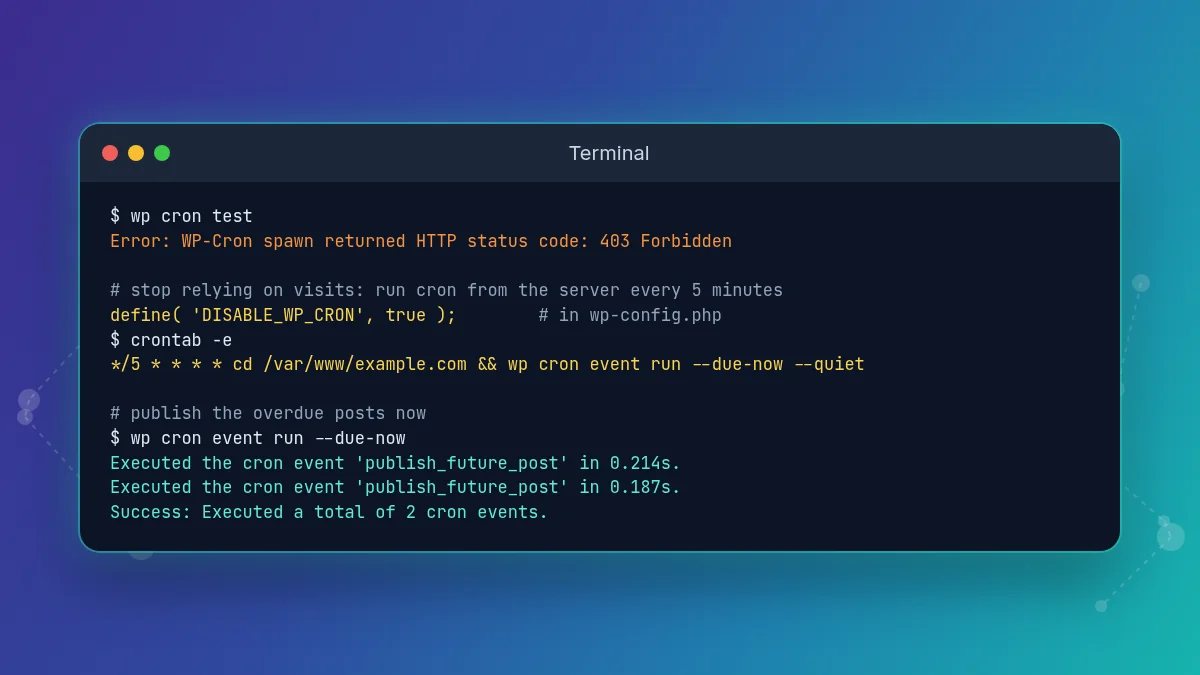
The most reliable fix for missed schedules is to stop depending on visits. WordPress’s own developer documentation describes this setup: let the system scheduler call wp-cron.php on a fixed interval, then disable the traffic-based trigger so it does not run twice.
Step 1: Disable the visit-based trigger
Add this line to wp-config.php above the “That’s all, stop editing!” comment:
define( 'DISABLE_WP_CRON', true );Do this together with step 2. Disabling WP-Cron without a replacement is cause 2 above.
Step 2: Add the cron job in your hosting panel
- cPanel: open Advanced → Cron Jobs, choose Once Per Five Minutes under Common Settings, and paste one of the commands below.
- Plesk: open Websites & Domains → Scheduled Tasks, add a task of the type Fetch a URL with
https://example.com/wp-cron.php?doing_wp_cron, or Run a command with the WP-CLI command, and set it to every 5 minutes. - Other panels and managed hosts: look for “Cron Jobs” or “Scheduled Tasks”. Some managed WordPress hosts already run a server cron for you; their documentation will say so.
- No cron access at all: an external cron or uptime service that requests the
wp-cron.phpURL every 5 minutes works the same way.
Step 3: Add it over SSH (VPS or dedicated server)
Run crontab -e as the user that owns the WordPress files (not root, so new files do not get the wrong owner) and add one line:
# Option A: WP-CLI (no HTTP request, not affected by firewalls or CDN rules)
*/5 * * * * cd /var/www/example.com && wp cron event run --due-now --quiet

# Option B: HTTP request to wp-cron.php
*/5 * * * * wget -q -O /dev/null "https://example.com/wp-cron.php?doing_wp_cron"
Option A is the better choice when WP-CLI is installed, because it runs PHP directly and skips the loopback, the web server, and any proxy in front of it. On a multisite network, run it for each site with the --url= parameter.
Step 4: Verify it works
- Wait 5 minutes and run
wp cron event list; no event should show a time far in the past. - Schedule a test post 10 minutes ahead and do not open the site in the meantime.
- Check that it published on time, then delete it.
- Open Tools → Site Health and confirm the scheduled event warnings are gone.
How to Publish Missed Posts Now
Fixing cron does not always publish old items. Overdue publish_future_post events normally run on the next cron run, but posts whose event is missing stay in Scheduled. You have three options:
- In wp-admin: open each post, set the date to now (or keep the original date if you want it to appear in the past), and click Publish. With Quick Edit in the posts list you can change the status to Published without opening the editor.
- Run due events once:
wp cron event run --due-nowpublishes every post whose event is overdue. - Publish one post by ID:
wp post update POST_ID --post_status=publish.
Be careful with bulk scripts that publish every future post: they also publish posts that are correctly scheduled for next week. Filter by post_date first.
General troubleshooting
- Confirm with a new test post: schedule a post 5 minutes ahead after every change instead of judging by old missed items.
- Review recent changes: hosting migrations, new security or cache plugins,
wp-config.phpedits and Cloudflare or firewall changes are the usual triggers. - Check the error log: enable
WP_DEBUG_LOGand look for fatal errors at the scheduled time. A plugin that crashes during cron can stop the run, and the same crash can show up as a critical error on this website elsewhere. - After a migration: if the server resolves your domain to the old host, the loopback goes to the wrong machine. Compare
dig +short example.comon the server with the real IP; our guide to a domain not pointing to hosting covers the DNS side. - Custom code: plugins can add intervals through the
cron_schedulesfilter and create events withwp_schedule_event(); a broken interval or duplicate events can explain odd scheduling on customized sites.
Prevention Tips
- Use a real system cron job on production sites that depend on scheduled publishing.
- Do not disable WP-Cron unless you replace it properly.
- Keep the site timezone correct.
- Review Site Health regularly.
- Be careful with security plugins that block loopback or internal HTTP requests.
- Monitor server load if missed schedules start under traffic spikes or server stress.
- Test scheduled posts after major hosting, firewall, or caching changes.
- Keep plugin stacks lean and review cron-related plugins closely.
The best prevention is simple: do not rely blindly on traffic-based cron for time-critical publishing. Cron also runs automatic updates; if those stall halfway, see WordPress stuck in maintenance mode.
When to Contact Support
Contact your hosting provider if:
- loopback requests to
wp-cron.phpmay be blocked, - the server is overloaded or unstable,
- you need access to cron jobs or logs you do not control,
- scheduled tasks started failing after migration or firewall changes.
Contact the plugin developer if:
- missed schedules began right after installing or updating their plugin,
- their plugin changes cron intervals or publishing logic,
- the issue disappears when their plugin is disabled.
Focus on WordPress-level troubleshooting if:
- the timezone is wrong,
- WP-Cron is disabled,
- Site Health reports cron issues,
- the site has very low traffic and relies on scheduled publishing.
FAQ
Usually WP-Cron did not run on time. The most common reasons are low traffic or fully cached pages, WP-Cron disabled without a server cron, a failed loopback request to wp-cron.php, a firewall or CDN rule blocking it, plugin conflicts, a wrong timezone, or server overload.
Check the timezone, confirm whether DISABLE_WP_CRON is set, test whether wp-cron.php is reachable with wp cron test or curl, and replace traffic-based WP-Cron with a real server cron job that runs every 5 minutes. Then publish the missed posts manually.
WordPress cron normally runs only when a request reaches PHP after the scheduled time has passed. On low-traffic sites, or when a cache serves almost every page, that trigger may not happen when you expect, so the post waits until the next uncached visit.
Only if you replace it with a real system cron job. The WordPress developer documentation recommends hooking WP-Cron into the system task scheduler for tasks that must run on time, and then disabling the visit-based trigger with DISABLE_WP_CRON.
Overdue events usually run on the next successful cron run, so many missed posts publish by themselves. Posts whose cron event is missing stay scheduled; publish them manually in wp-admin or with the WP-CLI command wp post update and the publish status.
Yes. Plugins can flood or break the cron queue and security plugins can block the loopback request. Cloudflare or another proxy can challenge or rate limit requests to wp-cron.php. Allow that path for your server IP or run cron locally with WP-CLI.
Related WordPress Errors
- WordPress REST API Error
- WordPress Stuck in Maintenance Mode
- 403 Forbidden in WordPress
- Critical Error on This Website
- Memory Exhausted Error in WordPress
- WordPress Not Sending Emails
- How to Fix Website Errors (full guide)

Hi, I’m Alex — the person behind ErrorRescue.
I’ve been working with websites, servers, and hosting for over 8 years. Most of my experience comes from troubleshooting real problems on WordPress sites, VPS and shared hosting environments, and Cloudflare setups. I’ve dealt with everything from SSL certificate failures and DNS misconfigurations to 504 timeouts, memory exhaustion errors, and Cloudflare 5xx issues.
I started ErrorRescue because I got tired of seeing generic, outdated, or incomplete error guides. My goal is to write clear, practical fixes based on what actually works in production — not just theory. Every guide here is tested against common server setups (Apache, NGINX, Cloudflare, and popular WordPress stacks).
When I’m not fixing sites, I’m usually reviewing new hosting configurations or updating existing guides so they stay accurate.