
Last tested: November 16, 2026 · By Alex
A WordPress 404 error on posts almost never means the article is gone. In most cases the post is still published in wp-admin, the homepage loads, and only the pretty URL of each post answers with 404 Not Found. Something between the browser and WordPress no longer turns /sample-post/ into a request for that post, so the server or WordPress gives up and shows a missing page.
This guide is about that one pattern: content that exists but cannot be reached by its permalink. It starts with two tests that tell you in a minute whether the web server, WordPress or a cache produced the 404, then walks through the fixes in the order they usually work: saving permalinks, the .htaccess block, the Nginx try_files rule, plugin and slug conflicts, post status, migration leftovers and caches. For broken links and missing pages in general, the broader 404 Not Found guide is the better start.
Quick Fix
- In the dashboard, visit Settings → Permalinks and press Save Changes with no edits. That rebuilds the stored rewrite rules and, on Apache or LiteSpeed, rewrites the WordPress block in
.htaccesswhen the file is writable. - Request the post by its ID with
curl -I "https://example.com/?p=123". A 301 that points to the pretty URL means WordPress found the post, so the content is fine and only the route is broken. - Look at the 404 page itself. Your theme’s 404 template means WordPress ran; a bare white page that says nginx, Apache or LiteSpeed means the server never passed the request on.
- On Nginx, make sure the site’s
location /block ends withtry_files $uri $uri/ /index.php?$args;, then test and reload. - Purge the cache plugin, the server cache and the CDN, then retest in a private window.
Why Posts Return 404 While the Content Still Exists
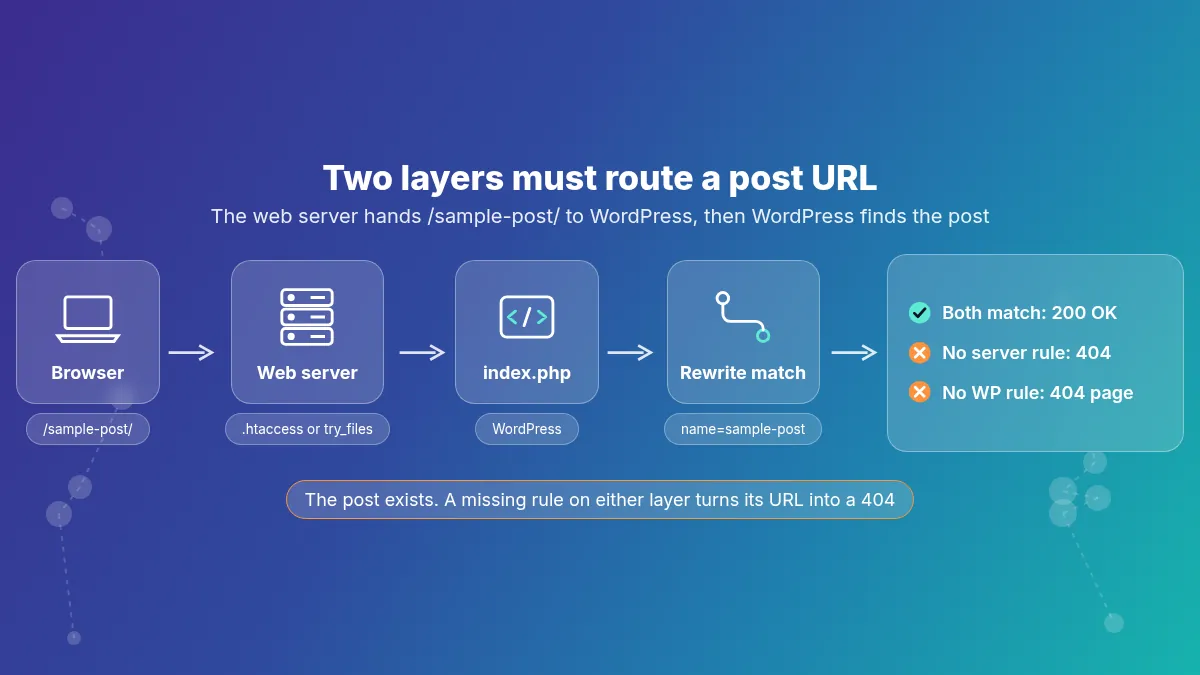
A pretty permalink such as https://example.com/sample-post/ does not point to a real file or folder. Two separate layers have to cooperate before you see the article, and a 404 can come from either one.
Layer 1: the web server hands the request to index.php
Apache, LiteSpeed, Nginx or IIS first looks for a real file or directory with that path. There is none, so a rewrite rule must send the request to WordPress’s front controller, index.php, without changing the address in the browser. On Apache and LiteSpeed that rule lives in the root .htaccess file. On Nginx it is the try_files line in the server configuration. On IIS it is a rule in web.config, which only works when the URL Rewrite module is installed. If this layer is missing, the server returns its own 404 and WordPress is never involved.
Layer 2: WordPress matches the path to a post
Once index.php runs, WordPress compares the path with its own list of rewrite rules, which is stored in the database option rewrite_rules and generated from your permalink structure, taxonomies, custom post types and plugins. A match produces query variables such as name=sample-post, and WordPress looks the post up. When no rule matches, or the matching rule asks for the wrong post type, WordPress loads your theme’s 404 template.
Why posts are often the first thing to break
The homepage is a request for /, which reaches index.php even without any rewrite help, and wp-admin is made of real PHP files. That is why a site can look healthy at a glance while every single post fails. Pages can keep working too, because a greedy plugin rule may capture post slugs while page rules still match. So the real question is which of the two layers lost the route.
Find Out Who Served the 404
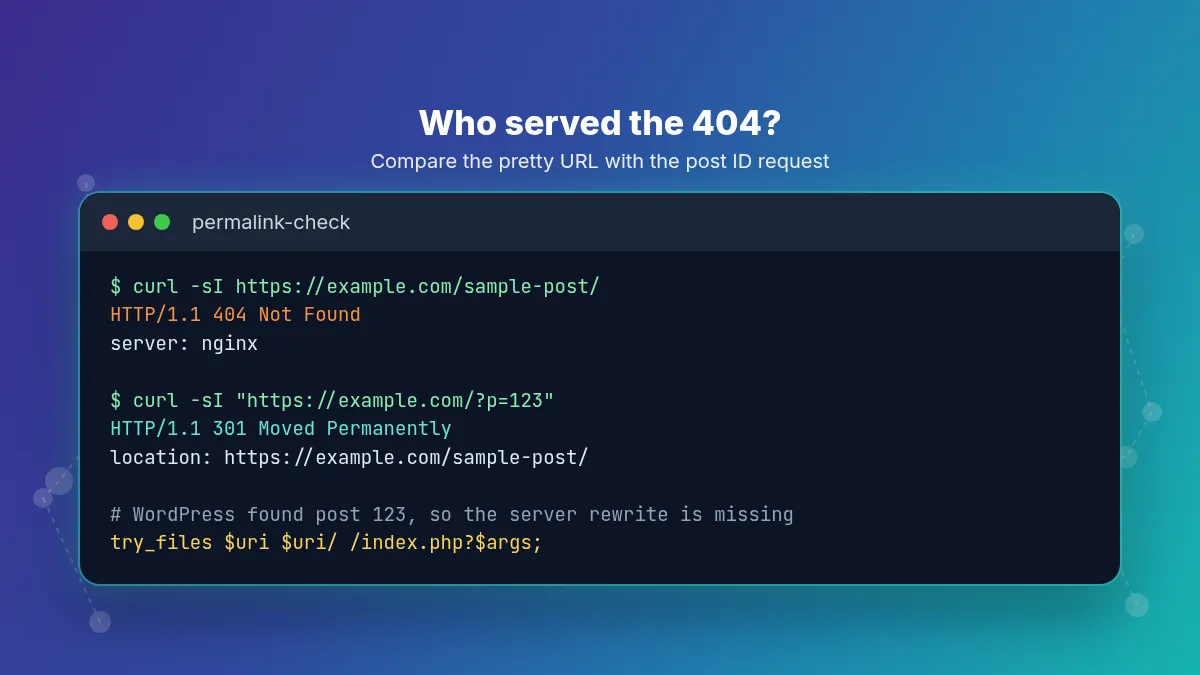
Spend two minutes on this before you change anything. Run the requests from your own computer or the server, using a real post’s URL and ID (the ID is in the edit link, post.php?post=123):
curl -sI https://example.com/sample-post/ | head -n 12
curl -sI "https://example.com/?p=123" | head -n 12
curl -sI https://example.com/index.php/sample-post/ | head -n 12
The ID request is the key test. WordPress handles ?p=123 without any rewrite rule, and when it finds a published post it answers with a 301 redirect to the post’s permalink. In a browser that redirect lands on the broken URL again, which is why the test looks useless there; in curl, the 301 and its Location header prove that the post exists and WordPress is running. Read the results with this table:
| What you see | Who answered | Where to look |
|---|---|---|
Plain 404 page with nginx, Apache or LiteSpeed at the bottom, while ?p=123 answers 301 to that same URL | The web server | Missing try_files line, missing .htaccess block, mod_rewrite off or AllowOverride None |
Your theme’s 404 page for the pretty URL, while ?p=123 still answers 301 or 200 | WordPress | Stale rewrite rules, a plugin or custom post type rule, a slug conflict |
?p=123 itself returns the theme 404 while you are logged out | WordPress, on purpose | Post status: draft, scheduled, private or trashed |
404 with cf-cache-status: HIT, x-litespeed-cache: hit or a similar header | A cache | Purge, then make sure 404 responses are not cached for long |
/index.php/sample-post/ works but /sample-post/ does not | The web server | Rewriting is off; WordPress routing itself is fine |
The last test relies on PATH_INFO, which Apache passes to PHP by default. On Nginx it only works if the PHP location handles it, so skip it there and rely on the first two requests. If curl and the browser disagree, also read why a site behaves differently in one browser, because an extension or a cached redirect can fake the result.
One Post, All Posts or Every URL
Next, open two posts, a page, a category archive and a custom post type item, and note which ones fail.
- Every URL except the homepage fails: the server-side rewrite is gone. This is typical right after a move to Nginx, a new VPS, a restored backup without hidden files, or a hosting control panel that rebuilt the virtual host.
- All posts fail, pages and archives work: look at WordPress rules first. A recently installed plugin, a custom post type with a rewrite slug that collides with posts, or a permalink structure that was half changed are the usual suspects.
- Only one post or a handful fail: it is about those slugs. Check for a page or term with the same slug, a changed slug that old links still use, or a status other than Published.
- Only logged-out visitors get the 404: caching, or the post is private, scheduled or behind a membership rule. Logged-in users usually bypass the page cache.
Step-by-Step Fix for a WordPress 404 Error on Posts
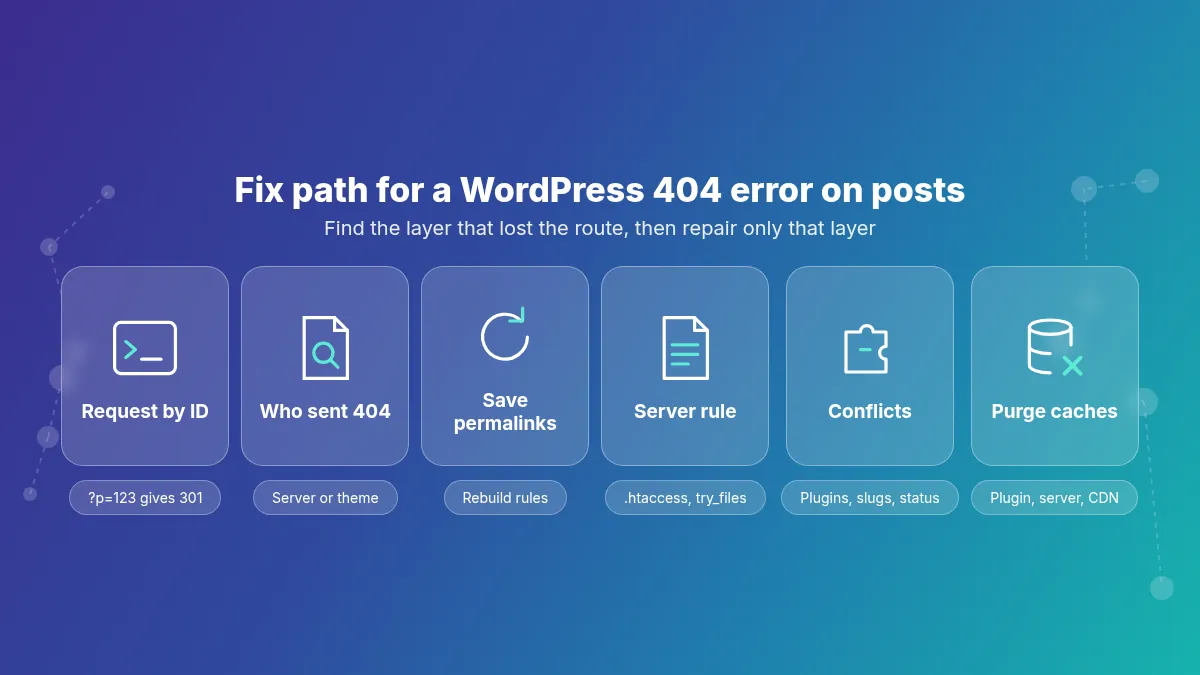
Work through these in order and retest a post after each step. Back up .htaccess, the Nginx configuration and the database before you edit them.
1. Rebuild the WordPress rewrite rules
Visit the Permalinks screen under Settings and press the save button once. This flushes the stored rules and generates them again from the current structure, plugins and post types. If nothing changes, select Plain, save, select your real structure again and save once more. If WordPress shows a box with rules and asks you to update .htaccess manually, the file is not writable and you need step 2.
With WP-CLI the same thing is one command, and you can confirm the structure in use first:
wp option get permalink_structure
wp rewrite flush
wp rewrite list --format=count
wp rewrite flush --hard also asks WordPress to rewrite .htaccess, but from the command line WP-CLI cannot detect mod_rewrite and prints a warning unless apache_modules: [mod_rewrite] is set in wp-cli.yml. When in doubt, save permalinks in the dashboard instead.
2. Restore the .htaccess block (Apache and LiteSpeed)
Open the .htaccess file in the folder that contains wp-config.php. Many FTP clients hide files that start with a dot, so turn on hidden files. The block WordPress writes today looks like this, including the HTTP_AUTHORIZATION line that was added in WordPress 5.6 for Application Passwords:
# BEGIN WordPress
<IfModule mod_rewrite.c>
RewriteEngine On
RewriteRule .* - [E=HTTP_AUTHORIZATION:%{HTTP:Authorization}]
RewriteBase /
RewriteRule ^index\.php$ - [L]
RewriteCond %{REQUEST_FILENAME} !-f
RewriteCond %{REQUEST_FILENAME} !-d
RewriteRule . /index.php [L]
</IfModule>
# END WordPress
If WordPress lives in a subfolder such as /blog/, use RewriteBase /blog/ and RewriteRule . /blog/index.php [L]. Keep the file at mode 644. Rules from security, redirect or cache plugins belong in their own marked sections; if one of them sits above the WordPress block and redirects or denies paths that look like posts, comment it out and test. A broken .htaccess is just as likely to produce a 500 Internal Server Error as a 404, so check the error log if the whole site goes down after an edit.
On LiteSpeed Enterprise, changes to .htaccess apply right away. OpenLiteSpeed reads rewrite rules from .htaccess only when it starts, so restart it after you edit the file.
3. Turn on mod_rewrite and AllowOverride (Apache on a VPS)
A perfect .htaccess does nothing if Apache ignores it. Check both settings:
apachectl -M 2>/dev/null | grep rewrite
sudo grep -Rn "AllowOverride" /etc/apache2/ /etc/httpd/ 2>/dev/null
No rewrite_module line means the module is off. AllowOverride None on the document root means .htaccess is ignored. On Debian and Ubuntu:
sudo a2enmod rewrite
# inside <Directory /var/www/html> ... </Directory>
AllowOverride All
sudo apachectl configtest && sudo systemctl restart apache2
On shared hosting you cannot change these yourself, but you can ask support to confirm that mod_rewrite is active and overrides are allowed for your folder.
4. Add the WordPress fallback to Nginx
Nginx never reads .htaccess, so saving permalinks cannot fix it. The server block needs a fallback that sends unknown paths to index.php, and PHP requests must reach PHP-FPM. Find the active configuration with sudo nginx -T, then check the location block for the site:
location / {
    try_files $uri $uri/ /index.php?$args;
}

# WordPress in /blog/
location /blog/ {
    try_files $uri $uri/ /blog/index.php?$args;
}
sudo nginx -t && sudo systemctl reload nginxA common mistake is a try_files $uri $uri/ =404; line copied from a static site template, which returns 404 for every permalink. Another is a second server block that answers for the same name and wins. If you moved to Nginx and posts work but the REST API or login now misbehaves, the same missing fallback is often behind a WordPress REST API error as well.
5. Find plugin and custom post type conflicts
Plugins that add post types, taxonomies, languages, redirects or membership rules all register rewrite rules. A post type registered with a rewrite slug of blog while your structure is /blog/%postname%/, or a plugin rule that matches every single-segment path, can swallow normal posts. WP-CLI shows exactly which rule wins for a URL:
wp rewrite list --match=/sample-post/ --fields=match,query,sourceThe first line is the rule WordPress uses. If its query points to a custom post type, a taxonomy or a page instead of name=, that plugin or post type is the conflict. Change its slug, update the plugin or disable it, then flush again. Without WP-CLI, deactivate recent plugins one by one and save permalinks after each; if wp-admin itself is down, rename the plugin folder in wp-content/plugins/. For developers: call flush_rewrite_rules() on plugin activation and deactivation only, never on every request.
6. Fix slug conflicts on individual posts
When only a few posts fail, check their slugs. A page, a category, a tag or a custom post type item with the same slug can take the URL, and some words collide with built-in routes such as feed, page, embed or a category base. Look up everything with that slug:
wp post list --post_type=any --name=sample-post --fields=ID,post_type,post_status
wp term list category --slug=sample-post
Rename one side of the conflict. If you change a slug that search engines already know, WordPress usually redirects the old slug automatically through its _wp_old_slug record, but confirm it with curl -I and add a 301 redirect if it does not.
7. Check the post status and date
WordPress returns a real 404 to visitors who are not allowed to see a post. Drafts and pending posts are only visible through preview links. Private posts return 404 to anyone who is not logged in with the right role. Scheduled posts return 404 until their date; if one is stuck in the past as Scheduled, see the missed schedule fix. Trashed posts get __trashed appended to their slug, so restoring one may need its slug to be corrected by hand. A password-protected post is different: it shows a password form, not a 404.
8. Correct site URLs after a migration
After moving hosts, changing domains, adding HTTPS or switching between www and the bare domain, the stored addresses may still point to the old place, and links in menus and content may lead to paths that no longer exist. Compare Settings → General with the real address, or run:
wp option get home
wp option get siteurl
wp search-replace 'https://old.example.com' 'https://example.com' --dry-run
Run the replacement without --dry-run once the counts look right, then save permalinks again. When the dashboard itself will not load, the two addresses can be forced for a while with WP_HOME and WP_SITEURL constants in wp-config.php. When the change also triggers loops, the redirect loop after enabling SSL guide covers that side, and problems after a DNS change covers sites that still resolve to the old server.
9. Purge every cache that stored the 404
A fixed post can keep failing because the 404 itself was cached. Check the headers from step one again. Purge the cache plugin, the host’s server cache, any reverse proxy and the CDN, in that order, and then the browser. A throwaway query string such as ?nocache=1 bypasses many page caches and confirms the fix early.
Debug the Route with WordPress Itself
When the steps above do not explain the 404, ask WordPress what it understood. Put this small snippet in a must-use plugin on a staging copy (for example wp-content/mu-plugins/debug-404.php), load the failing URL while logged in as an administrator, then delete the file:
<?php
add_action( 'wp', function () {
    if ( is_404() && current_user_can( 'manage_options' ) ) {
        global $wp;
        error_log( 'Matched rule: ' . $wp->matched_rule );
        error_log( 'Query vars: ' . wp_json_encode( $wp->query_vars ) );
    }
} );
With WP_DEBUG_LOG enabled, the lines appear in wp-content/debug.log. An empty matched rule means no rule fits the path. A rule with pagename or a custom post type in the query vars means another route captured the URL. Correct query vars with a 404 anyway point to the post status, a theme template that forces a 404, or code hooked into pre_get_posts. If the debug log reports file or include errors instead, the failed to open stream guide explains them.
A theme can also force a 404 template or alter the main query, so a short test with one of the bundled Twenty Twenty themes is worth a minute at this stage.
After a Migration or Server Switch
Moves are the single most common trigger for posts that suddenly 404. Run this short checklist on the new server before you point DNS at it:
- The hidden
.htaccessfile was copied (archives and some FTP transfers skip dot files). - The web server type is known. Apache or LiteSpeed needs the block above; Nginx needs the
try_filesfallback in the server block. - The permalink structure in the database matches the old site:
wp option get permalink_structureon both. homeandsiteurluse the final domain and protocol.- Permalinks were saved once on the new server so the rewrite rules are rebuilt there.
- Caches and the CDN were purged after the switch, not before.
If the site stops loading entirely rather than returning 404, why a website is not loading is the right next read.
Repair Links Without Creating New 404s
Once posts load again, make sure visitors and search engines do not keep landing on dead addresses. If you changed the permalink structure, for example from /%year%/%monthnum%/%postname%/ to /%postname%/, add a pattern redirect from the old form to the new one with a redirect plugin or a server rule, and test a few old URLs with curl -IL. Keep the chain short; one 301 is enough.
WordPress also tries to guess a nearby post when a URL is not found and redirects to it. That can hide the real problem while you debug; the do_redirect_guess_404_permalink filter turns it off. In Google Search Console, the Pages report lists URLs that return 404, which is a good way to find old links you missed.
Prevention Tips
- Change the permalink structure only once, early, and plan redirects before you do.
- Test a post, a page and an archive after every plugin update that touches post types, languages or redirects.
- Use staging for structure changes and migrations, and save permalinks there first.
- Do not let caches store 404 responses for long; a short TTL limits the damage of a temporary failure.
When to Contact Your Host or a Developer
Contact the host if mod_rewrite or overrides are disabled and you cannot change them, if the Nginx configuration is managed by the panel and has no WordPress fallback, if .htaccess keeps being reset, or if IIS lacks URL Rewrite. Contact the plugin or theme developer if wp rewrite list --match shows their rule capturing your post URLs, or if the 404s stop as soon as their code is disabled. Send the failing URL, the curl output and the matched rule.
Related WordPress problems: login redirect loops, 403 Forbidden on WordPress and the white screen of death. Everything else is indexed in the Error Rescue troubleshooting hub.
Frequently Asked Questions
The homepage reaches index.php without any rewrite rule, while post URLs need one. When the server rule or the stored WordPress rules are missing, only the pretty permalinks fail and the content itself is untouched.
Open Settings, then Permalinks, and click Save Changes without editing anything. That rebuilds the rewrite rules. If it does not help, restore the WordPress block in .htaccess on Apache or add the try_files fallback on Nginx.
Nginx ignores .htaccess, so the rules that worked on Apache are gone. Add try_files with the index.php fallback to the location block of the site, test the configuration and reload Nginx.
Yes. Plugins that register post types, taxonomies, languages or redirects add rewrite rules that can capture normal post URLs. WP-CLI rewrite list with the match option shows which rule wins for a given URL.
Usually its slug collides with a page, category or post type, or the post is not published for visitors. Drafts, private and scheduled posts return 404 to anyone who is not allowed to see them.
Logged in users often bypass the page cache, so visitors may get a stored 404. Purge the cache plugin, the server cache and the CDN, then test the URL in a private window.

Hi, I’m Alex — the person behind ErrorRescue.
I’ve been working with websites, servers, and hosting for over 8 years. Most of my experience comes from troubleshooting real problems on WordPress sites, VPS and shared hosting environments, and Cloudflare setups. I’ve dealt with everything from SSL certificate failures and DNS misconfigurations to 504 timeouts, memory exhaustion errors, and Cloudflare 5xx issues.
I started ErrorRescue because I got tired of seeing generic, outdated, or incomplete error guides. My goal is to write clear, practical fixes based on what actually works in production — not just theory. Every guide here is tested against common server setups (Apache, NGINX, Cloudflare, and popular WordPress stacks).
When I’m not fixing sites, I’m usually reviewing new hosting configurations or updating existing guides so they stay accurate.